Writing Fractions
Introduction
Welcome back to Writing Math in LaTeX! In the first two lessons of this course, you learned how to enter math mode and how to write subscripts and superscripts. With those tools in hand, you are already capable of expressing a wide range of notation. Now, in this third lesson — the halfway point of the course — we turn to one of the most recognizable structures in all of mathematics: fractions. By the end of this lesson, you will know how to typeset fractions with the \frac command, nest fractions within fractions, mix fractions into larger expressions, and understand how their appearance changes between inline and display modes.
Why Fractions Need Special Treatment
Fractions appear everywhere in mathematics and science. From the slope formula in algebra to dosage ratios in medicine, the familiar "one thing over another" structure is one of the most common patterns in technical writing. In plain text, we often resort to a forward slash, writing something like 1/2 or (a+b)/(c+d). This works for quick notes, but it becomes hard to read as expressions grow more complex.
LaTeX solves this with a clean, stacked layout where the numerator sits above a horizontal bar and the denominator sits below it. This is the polished format you see in textbooks and published papers, and it is exactly what the \frac command produces.
The \frac Command
The \frac command takes two required arguments enclosed in curly braces: the numerator first, then the denominator.
As you know from working with subscripts and superscripts, curly braces group content so that LaTeX treats it as a single unit. Here, the first pair of braces holds whatever goes on top of the fraction bar, and the second pair holds whatever goes below it. Let's see a simple example in display math mode:
This produces:
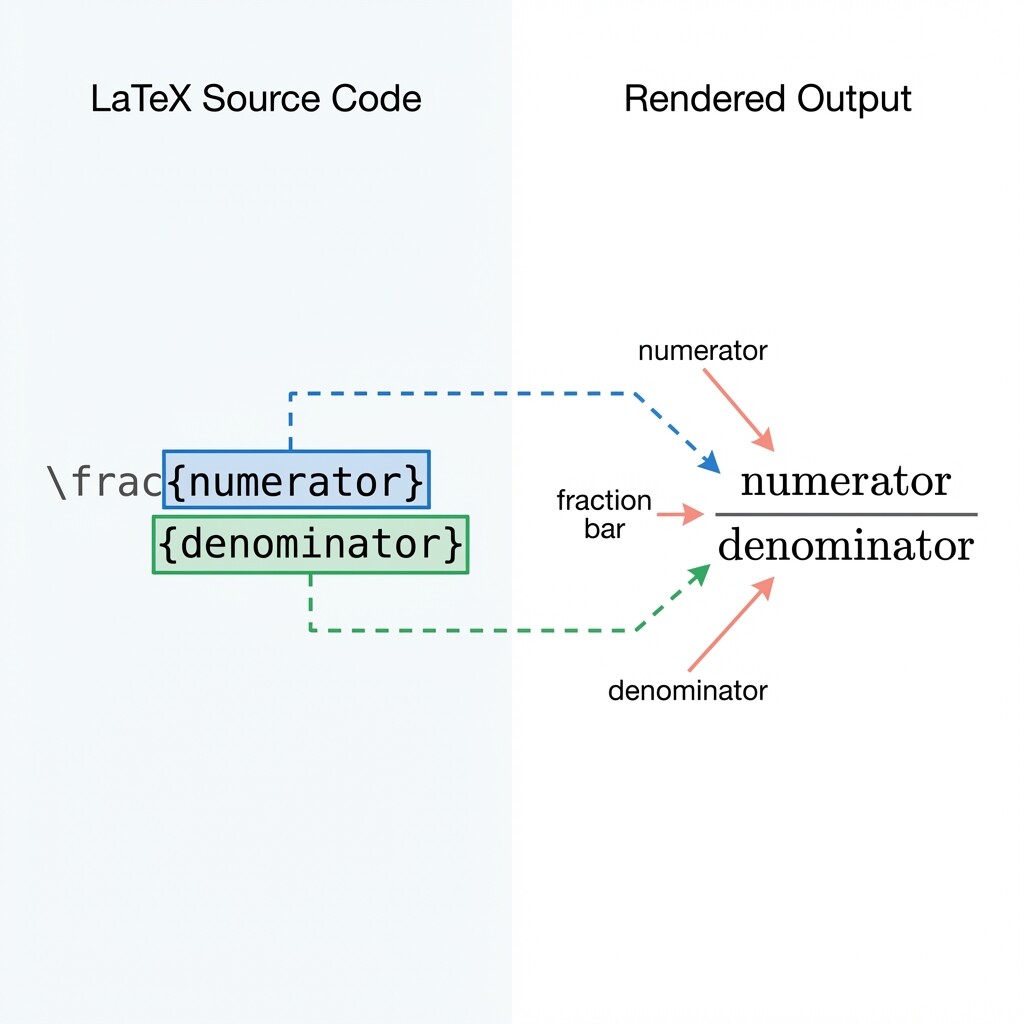
The numerator a appears above the fraction bar and the denominator b appears below it. We can place any valid math expression inside those braces — for instance, \frac{x + 1}{2} renders as:
No matter how many characters or symbols appear inside the braces, LaTeX treats each group as a single block and lays it out neatly.
Inline Versus Display Fractions
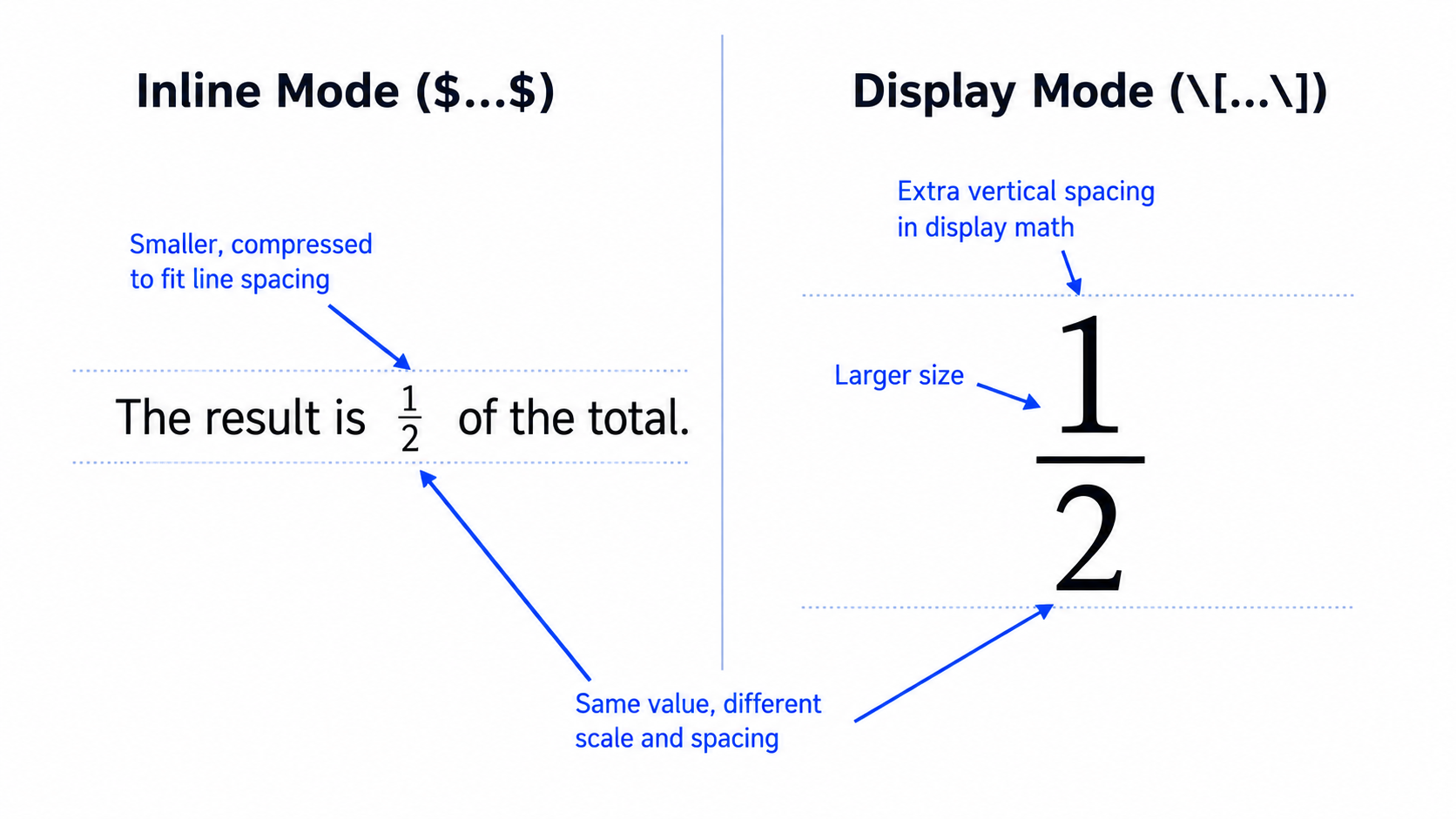
Fractions behave quite differently depending on which math mode you use, and it is important to know what to expect. In display mode, fractions appear full-sized with generous spacing:
In inline mode, the same code produces a noticeably smaller result. Writing $\frac{1}{2}$ gives us , where LaTeX compresses the numerator and denominator so the fraction does not push the surrounding text lines apart.
This size difference has real implications for readability. The following table offers a practical guideline:
| Situation | Recommended Mode | Reason |
|---|---|---|
| Simple fractions like in running text | Inline $...$ | Keeps the text flowing smoothly |
| Important or complex fractions | Display \[...\] | Gives the expression room to breathe |
For very simple ratios within a sentence, some writers prefer the slash notation $1/2$ over $\frac{1}{2}$ to keep the line height consistent. Both are acceptable, and the best choice depends on how prominent you want the fraction to be.
Nested Fractions
Because each argument of \frac can contain any math expression, we can place one fraction inside another. This is called nesting. For example, suppose we want to write "one divided by one plus one over x." We simply place a \frac inside the denominator of an outer \frac:
This renders as:
The inner fraction is automatically made smaller to fit inside the denominator of the outer fraction. LaTeX handles the sizing for us, though deeply nested fractions can become quite tiny. A good rule of thumb is to avoid going beyond two levels of nesting; past that point, the result is often hard to read.
When writing nested fractions, careful brace management is essential. Each \frac requires its own pair of braces for the numerator and another for the denominator, so missing even one brace will trigger an error. A helpful technique is to build from the outside in:
- Start with the outer fraction:
\frac{}{} - Fill in the numerator:
\frac{1}{} - Build the denominator, including the inner fraction:
\frac{1}{1 + \frac{1}{x}}
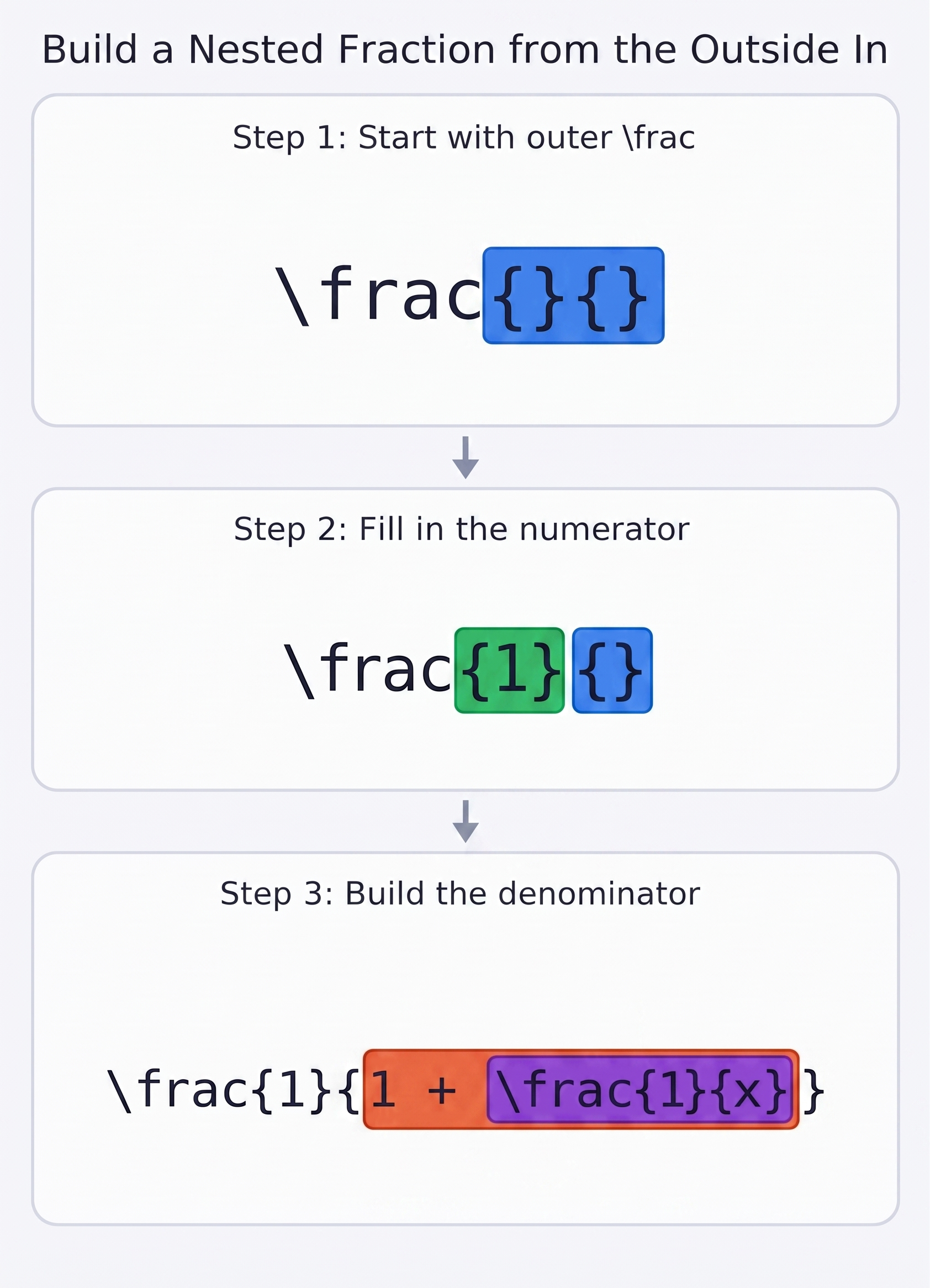
This step-by-step approach makes it much easier to keep your braces balanced.
Fractions in Compound Expressions
Fractions rarely appear in isolation. In real formulas, they are mixed with other terms, variables, and operators. You can freely combine \frac with addition, subtraction, subscripts, superscripts, and anything else you have learned so far. Consider this expression:
This gives us:
Notice how the subscripts and superscripts from the previous lesson work seamlessly inside fraction arguments. The x^2 in the numerator is typeset just as it would be outside a fraction — everything we have learned can be used freely inside \frac braces.
Here is a slightly more involved example from statistics, the formula for a sample mean:
Don't worry about the \bar command or \cdots for now; we will encounter those in the next course. The key point is that the fraction comfortably holds a longer expression in the numerator while keeping everything properly aligned. This is exactly the kind of formula you will be assembling in the practice exercises.
Common Mistakes to Avoid
As with subscripts and superscripts, a few small errors can cause big headaches when working with fractions. Here are the most frequent pitfalls:
- Missing braces: Writing
\frac x yinstead of\frac{x}{y}. Without braces, LaTeX may grab only the first character for each argument, producing unexpected output. - Unbalanced braces in nested fractions: Every opening
{must have a matching}. Count your braces carefully when you have two or more levels of nesting. - Overusing inline fractions: A complex fraction like can feel cramped inside a paragraph. When a fraction holds anything beyond a simple ratio, consider switching to display mode instead.
Conclusion and Next Steps
In this lesson, we explored the \frac command and its two required arguments for building fractions in LaTeX. We compared how fractions render in inline versus display mode, practiced nesting one fraction inside another, and saw how fractions combine naturally with subscripts, superscripts, and other terms in larger expressions. Careful brace management is the key skill here, especially as nesting depth increases.
Now it is time to put these ideas into practice. Head over to the exercises, where you will build fractions from the ground up — starting with simple ratios, comparing inline and display rendering, and working your way to nested, compound expressions. In the next lesson, we will move on to square roots, adding yet another essential piece to your math typesetting toolkit.
