Introduction: Subtle Problems with Big Impact

In the previous lesson, you built a recursive path tracer that simulates realistic light transport through Lambertian diffuse materials. Your ray tracer can now render matte surfaces with natural shading, and light bounces between objects, creating subtle color bleeding effects. This was a major achievement, transforming your simple ray tracer into something that simulates real-world physics. However, if you look closely at your rendered images, you might notice two issues that detract from the overall realism.

The first issue is subtle but annoying once you notice it. You might see small dark speckles or patterns scattered across surfaces that should be smoothly shaded. These artifacts look like noise or dirt on the surface, and they appear even in areas that should be uniformly lit. This problem is called shadow acne, and it's caused by floating-point precision errors in our ray-surface intersection calculations. The second issue is more obvious: your images probably look darker than they should. The bright areas aren't as bright as you'd expect, and the overall image feels muddy or underexposed. This happens because we're not accounting for how human vision perceives brightness and how display devices expect color values to be encoded.

These might seem like minor technical details, but they have a significant impact on the final image quality. Shadow acne breaks the illusion of smooth surfaces and makes your renders look amateurish. Incorrect brightness perception makes your carefully calculated lighting look wrong, wasting all the effort you put into simulating realistic light transport. In this lesson, we'll fix both of these problems with relatively simple solutions that will dramatically improve your rendered images. By the end, you'll understand why these artifacts occur and how to prevent them, giving your ray tracer the polish it needs to produce truly professional-looking results.

Understanding Shadow Acne

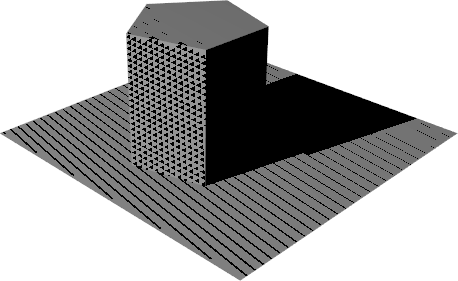
Shadow acne manifests as small dark spots or speckled patterns on surfaces, particularly noticeable on large, flat areas that should be smoothly shaded. The name comes from its similarity to the shadow mapping artifact in real-time graphics, though the underlying cause in ray tracing is slightly different. When you render a scene with diffuse materials, you might see these dark speckles scattered randomly across your spheres or ground plane. They look like the surface is dirty or has some kind of texture, but they're actually calculation errors.

The root cause of shadow acne in ray tracing is floating-point precision errors during ray-surface intersection tests. Here's what happens: when a ray hits a surface and bounces off, we calculate a new ray starting from the hit point. In theory, this new ray should start exactly on the surface and head off in the scatter direction. However, due to the limited precision of floating-point numbers, the calculated hit point might not be exactly on the mathematical surface. It might be slightly above or slightly below the true surface position.

When the hit point is calculated to be slightly below the surface, the scattered ray starts inside the object. As this ray travels outward, it immediately intersects the same surface it just bounced from. The ray tracer thinks it hit a different part of the surface and calculates another bounce, but this is a false intersection. The ray didn't actually travel anywhere meaningful. It just detected the same surface again due to numerical error. This false self-intersection causes the ray to lose energy incorrectly, creating a dark spot in the final image.
To understand why this happens, we need to think about how floating-point arithmetic works. When we calculate the intersection point using the ray equation, we're performing operations like multiplication and addition on numbers that have limited precision. A typical double-precision floating-point number has about fifteen to seventeen decimal digits of precision. This sounds like a lot, but when we're calculating positions in three-dimensional space and comparing distances, small errors accumulate. The difference between the calculated hit point and the true mathematical surface might be on the order of 1e-15 or 1e-16, which is tiny in absolute terms but large enough to cause the hit point to be on the wrong side of the surface.

Think of it like trying to measure something with a ruler that's slightly bent. If you're measuring the length of a table and your ruler has a tiny curve in it, you might get a measurement that's off by a millimeter or two. That error seems small, but if you're trying to determine whether a point is exactly on a line, that millimeter matters. In our case, the "bent ruler" is the limited precision of floating-point arithmetic, and the "millimeter" is the tiny error that puts our hit point on the wrong side of the surface.

Fixing Shadow Acne with an Epsilon Offset

The solution to shadow acne is surprisingly simple: we introduce a minimum hit distance, often called an epsilon or bias value. Instead of accepting intersections at any distance greater than zero, we only accept intersections that are at least some small distance away from the ray origin. This small offset ensures that when a ray bounces off a surface, it won't immediately intersect that same surface again due to precision errors.

The key insight is that we don't need perfect precision. We just need to ensure that the scattered ray starts far enough from the surface that numerical errors won't cause false self-intersections. By requiring hits to be at least 0.001 units away from the ray origin, we create a small "dead zone" around the starting point where intersections are ignored. This dead zone is large enough to encompass any floating-point precision errors but small enough that it doesn't affect the visual accuracy of the scene.

The value 0.001 works well for most scenes because it's much larger than typical floating-point errors (which are on the order of 1e-15) but much smaller than the features we're trying to render. If your spheres have radii of 0.5 or larger and your scene spans several units, an offset of 0.001 is essentially invisible. It's like adding a coat of paint that's one-thousandth of a unit thick to every surface. You can't see it, but it prevents the numerical issues.

In our ray tracer, we apply this fix in the ray_color function when we test for intersections. Here's the relevant line:

The second parameter to the hit function is the minimum hit distance. By passing 0.001 instead of 0.0, we tell the intersection test to ignore any hits closer than 0.001 units from the ray origin. When a ray bounces off a surface, the scattered ray starts at the hit point, and this epsilon offset prevents it from immediately hitting the same surface again.

You might have noticed that we actually introduced this change in the previous lesson when we implemented the recursive path tracer. At the time, we mentioned it briefly but didn't explain the reasoning in detail. Now you understand why this small change is necessary. Without it, your images would be covered in shadow acne artifacts. With it, surfaces render smoothly and cleanly.

Understanding Gamma Correction

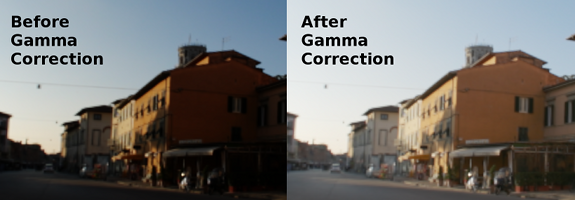
The second issue we need to address is that our rendered images look too dark. This isn't a bug in our lighting calculations. The problem is more subtle: it's a mismatch between how we calculate light intensity and how display devices and human vision work. Our ray tracer performs all lighting calculations in what's called linear space, where doubling the number of photons doubles the calculated brightness value. This is physically correct and necessary for accurate light transport simulation. However, both human vision and display monitors are nonlinear, which means they don't respond to light intensity in a linear way.

Human vision is more sensitive to changes in dark tones than in bright tones. If you're in a dark room and someone turns on a small lamp, the change is very noticeable. But if you're already in a brightly lit room and someone adds another lamp of the same brightness, the change is barely perceptible. This nonlinear response is an evolutionary adaptation that helps us see detail in shadows while not being overwhelmed by bright highlights. Mathematically, our perception of brightness is roughly proportional to the actual light intensity raised to a power less than one.

Display devices also have a nonlinear response, though for different reasons. Traditional CRT monitors had a natural gamma curve due to the physics of how electron guns excite phosphors. Modern LCD and OLED displays don't have this physical limitation, but they emulate the same behavior for compatibility. The standard gamma value for most displays is approximately 2.2, which means that if you send a value of 0.5 to the display, it doesn't produce 50% of the maximum brightness. Instead, it produces roughly 22% of the maximum brightness (0.5 raised to the power of 2.2).

This creates a problem for our ray tracer. We calculate lighting in linear space, where a value of 0.5 represents 50% of the maximum light intensity. But when we write this value directly to an image file and display it on a monitor, the monitor interprets it according to its gamma curve and displays only 22% brightness. The result is that our images look much darker than intended. Bright areas that should be at 50% brightness appear at 22%, and the entire image shifts toward darkness.

The solution is gamma correction, which is the process of encoding our linear light values in a way that accounts for the display's nonlinear response. We need to transform our linear values so that when the display applies its gamma curve, the result matches our intended brightness. If the display has a gamma of 2.2, we need to apply the inverse operation (raising values to the power of 1/2.2) before sending them to the display. This way, when the display applies its gamma curve, the two operations cancel out and we get the correct brightness.

Implementing Gamma Correction

Now let's implement gamma correction in our ray tracer. The correction needs to happen at the very end of our rendering pipeline, right before we write color values to the output file. We perform all our lighting calculations in linear space to maintain physical accuracy, and only at the final step do we convert to gamma-corrected space for display.

The implementation goes in the write_color function in color.h. This function takes the accumulated color from all the samples for a pixel and converts it to the final output values. Here's the complete updated function:

Let's walk through this function step by step to understand what's happening. The function receives pixel_color, which is the sum of all the color samples we took for this pixel during antialiasing. If we took fifty samples per pixel, this color value is the sum of fifty separate ray color calculations. The first thing we need to do is average these samples by dividing by the number of samples. We calculate a scale factor that's the reciprocal of the sample count, which we'll multiply by each color component.

The crucial step is the next three lines where we apply the square root function to each color channel. Notice that we multiply by the scale factor inside the square root operation. This is important because we want to stay in linear space for as long as possible. We first scale the accumulated color to get the average (still in linear space), then apply the square root to convert from linear space to gamma space. The std::sqrt function performs the gamma correction with gamma equals 2.0, transforming our linear light values into values that will display correctly on a monitor.

After gamma correction, we clamp each color component to the range zero to 0.999 using std::clamp. This ensures that our values are within the valid range for output. Values might exceed one due to very bright areas in the scene or numerical issues, and we need to bring them back into range. We use 0.999 instead of 1.0 as the upper bound because we're going to multiply by 256 in the next step, and we want to ensure the result is at most 255 (since 256 times 0.999 is 255.744, which truncates to 255).

Summary and Practice Preview

In this lesson, you learned how to fix two key rendering artifacts: shadow acne and incorrect brightness. Shadow acne appears as dark speckles caused by floating-point precision errors when rays bounce and immediately re-intersect the same surface. The fix is to add a small epsilon offset (e.g., 0.001) as the minimum hit distance in your intersection tests, preventing false self-intersections.

The second issue is that images look too dark because lighting is calculated in linear space, but displays and human vision are nonlinear (gamma-encoded). To correct this, you apply gamma correction—specifically, taking the square root of each averaged color channel before outputting pixel values. This ensures your images display with the intended brightness.

Both fixes are simple to implement but make a dramatic difference in image quality, eliminating distracting artifacts and ensuring your renders look polished and realistic.

Sign up
Join the 1M+ learners on CodeSignal
Be a part of our community of 1M+ users who develop and demonstrate their skills on CodeSignal