Entering Math Mode
Introduction
Welcome to Writing Math in LaTeX, the third course in your LaTeX learning path! In the first two courses, you learned how to create documents, format text, and organize content with headings, lists, tables, and figures. Now it is time to unlock one of LaTeX's greatest strengths: beautifully typeset mathematics. In this first lesson, you will explore how to enter math mode and learn the difference between writing math inline with your text and placing it on display as a standalone expression.
Why Math Mode Exists
In a regular LaTeX document, everything you type is treated as ordinary text. But mathematical notation has its own rules — symbols like , , and need special spacing, letters should appear in italics to denote variables, and expressions like fractions or exponents require their own layout logic. That is exactly what math mode is for.
When you switch into math mode, LaTeX changes how it interprets your input. It treats letters as mathematical variables, adjusts spacing around operators, and enables commands for things like superscripts or Greek letters. Think of it as flipping a switch from "text writing" to "math writing." There are two main ways to flip that switch: inline math and display math.
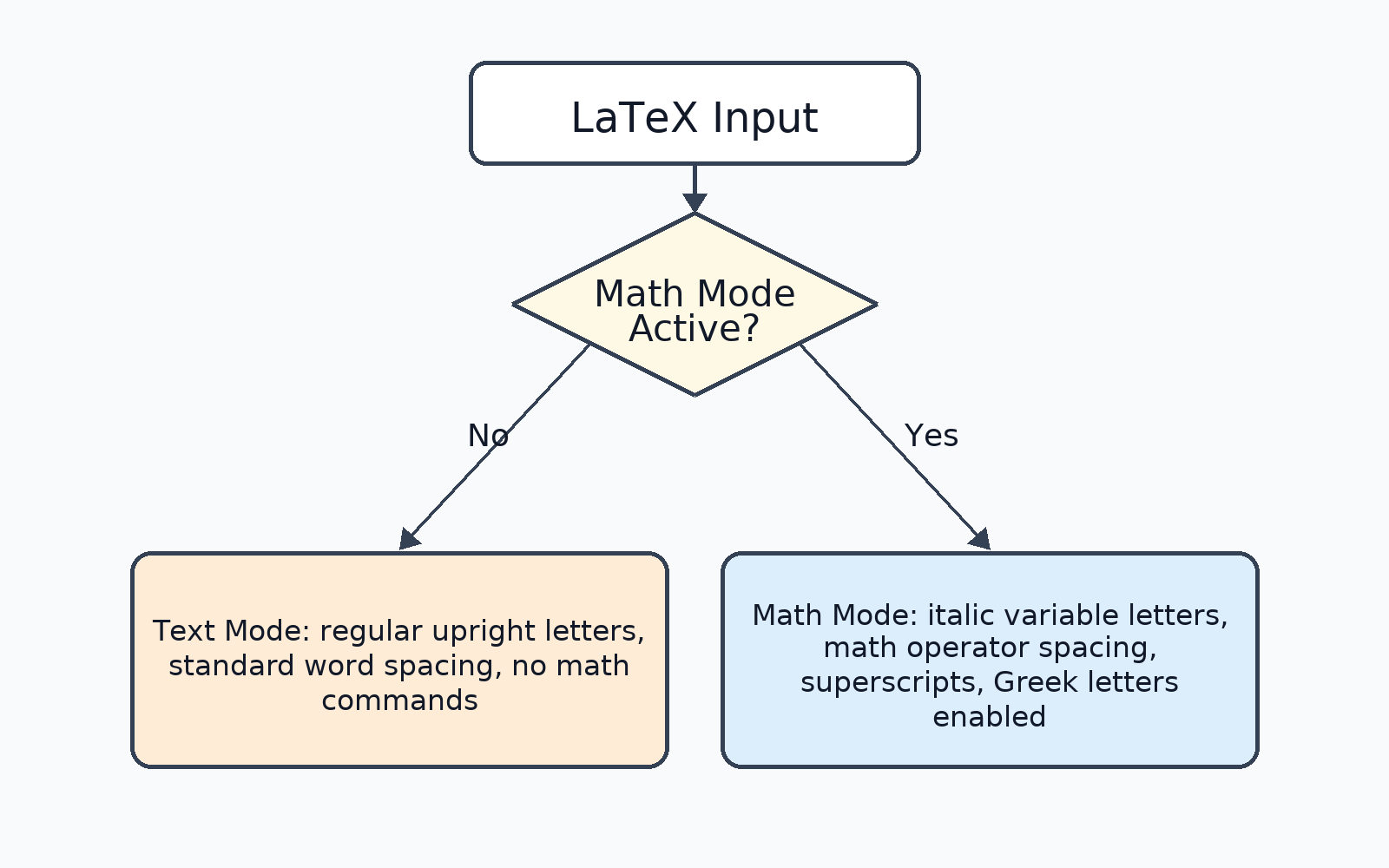
With that mental model in place, let's look at each mode in detail, starting with inline math.
Inline Math Mode
Inline math places a mathematical expression right inside a sentence, flowing naturally with the surrounding text. To enter inline math mode, wrap your expression in single dollar signs: $...$.
For example, the LaTeX input:
produces a sentence where sits neatly within the line of text. Notice how the expression matches the height and rhythm of the sentence. This is ideal for short references to variables, simple equations, or any math that is part of a spoken thought, such as "when " or "for all values of ."
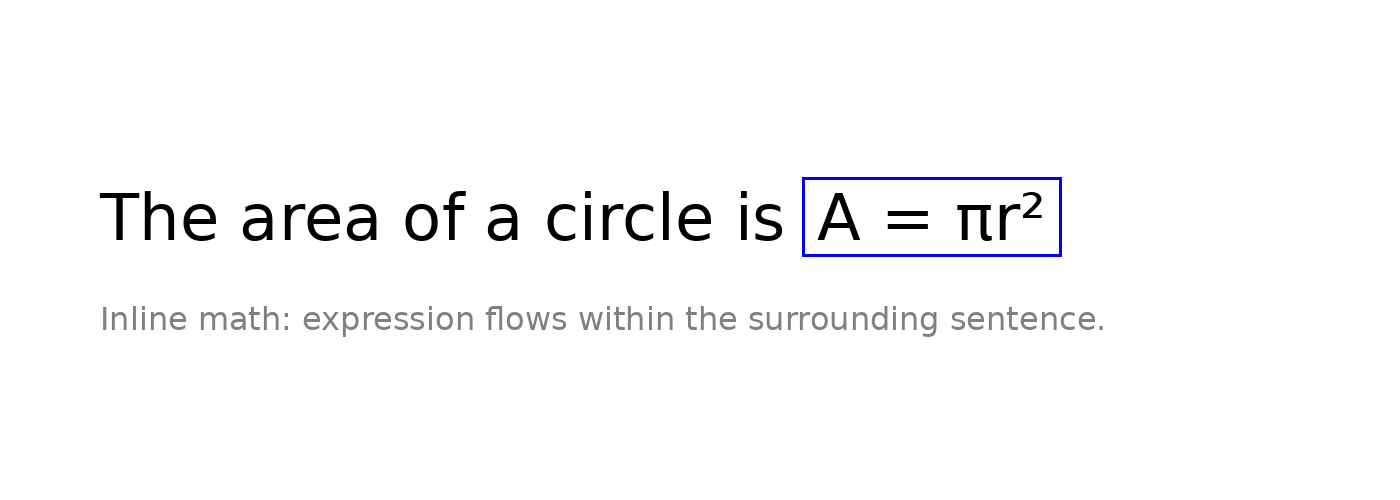
Here are a few things to keep in mind with inline math:
- No blank lines are allowed inside
$...$. The opening and closing dollar signs must be in the same paragraph. - Ordinary text rules pause inside math mode. If you type
$hello$, LaTeX renders it as — italic letters with no word spacing — because it treats each letter as a separate variable. - There is an alternate delimiter,
\(...\), that works identically to$...$. Like\[...\]for display math,\(...\)is the native LaTeX syntax, while$...$is inherited from plain TeX. Both are correct, but single dollar signs are far more common in practice, and we will use them throughout this course.
Display Math Mode
When an equation is important enough to stand on its own, you want it centered and visually separated from the text around it. That is what display math mode is for. To use it, wrap your expression in \[...\] delimiters:
This renders the equation centered on a separate line:
The surrounding text continues naturally above and below the equation. Display mode also gives LaTeX more vertical room, which becomes especially helpful for taller expressions like fractions or summations that you will encounter in later lessons.
One important note: you may see some resources use $$...$$ (double dollar signs) for display math. While this works in many setups, it is a plain TeX convention and is not recommended in LaTeX documents. The \[...\] form is the standard and produces more consistent spacing.
Choosing the Right Mode
Picking between inline and display math is fundamentally a readability decision. A short reference like reads smoothly inside a sentence, while a key formula deserves its own visual space so the reader's eye is drawn to it. Here is a quick guide:
| Use inline math when… | Use display math when… |
|---|---|
| The expression is short and simple | The expression is long or complex |
| It is part of a flowing sentence | It deserves emphasis or visual separation |
| Examples: , , | Examples: key formulas, definitions, results |
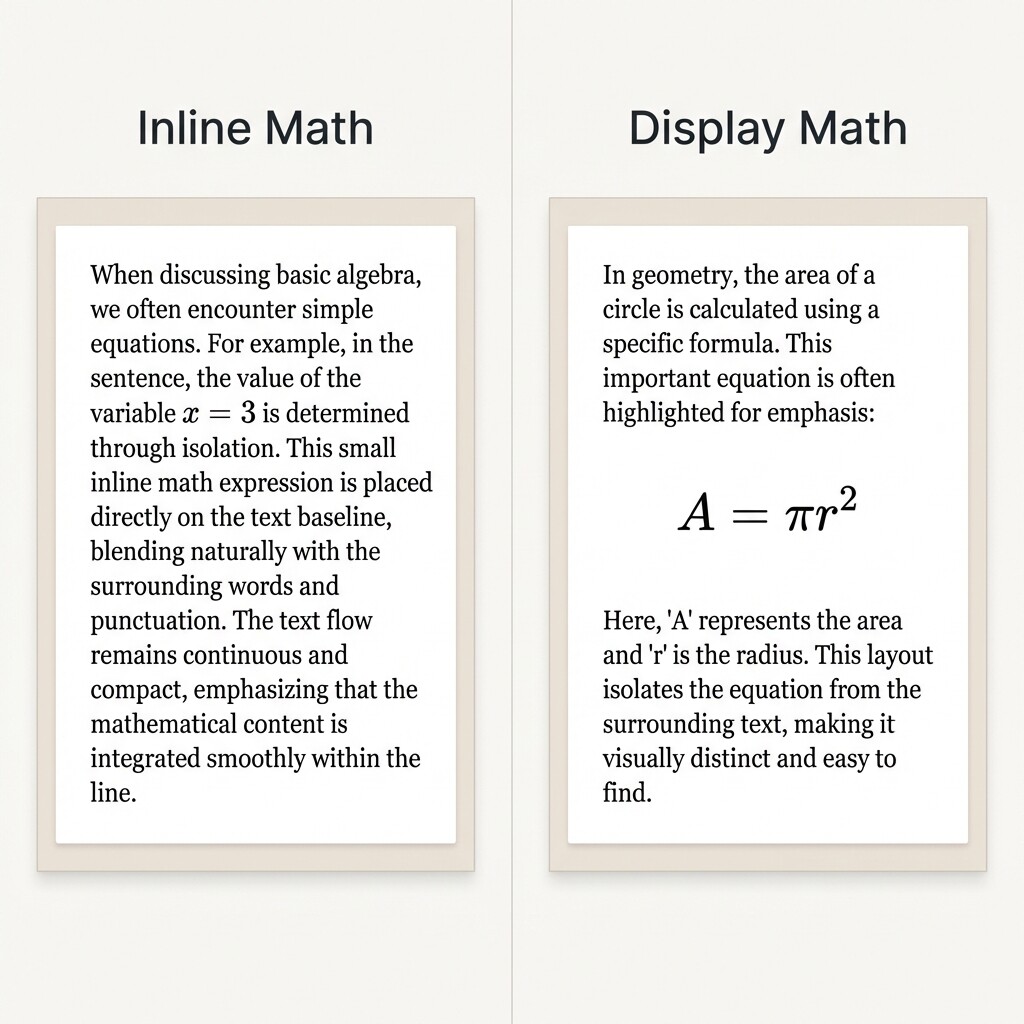
To see both modes working together, consider this short passage:
Here, the variable appears inline because it is a quick reference inside a sentence. The formula is placed in display mode because it is the main result we want to highlight. Mixing both modes like this is very common in mathematical writing and keeps your documents clear and professional.
Conclusion and Next Steps
In this lesson, you learned how LaTeX separates regular text from mathematical content through math mode. You now know how to use $...$ for inline expressions that flow within a sentence and \[...\] for display expressions that stand out on their own line. You also have a practical framework for deciding which mode fits a given situation.
These two modes form the foundation for everything you will typeset in the lessons ahead, from fractions and subscripts to Greek letters and beyond. Head over to the practice exercises now to try writing both inline and display math yourself — you will see how quickly these delimiters become second nature.
