Stat Panels for Memory Usage
Introduction: From Trends to Summary Numbers
In the previous lesson, you built your first time-series panel that displayed CPU usage trends over time. You learned how to structure queries with time, value, and metric columns, and you used Grafana's special macros to make your visualizations dynamic and responsive to the time picker. Those multi-line charts showing CPU usage rising and falling across different hosts gave you a powerful way to spot patterns and track changes over time.
But here's the thing — sometimes you don't need to see every wiggle in the data. Sometimes you just need to answer a simple question with a single number: "What's the average memory usage right now?" or "How much disk space is left?" Think about walking into an operations center and glancing at a big screen. You don't want to study a complex graph to figure out if everything is okay. You want to see "Average Memory: 4.2 GB" displayed prominently and instantly know the system's status.
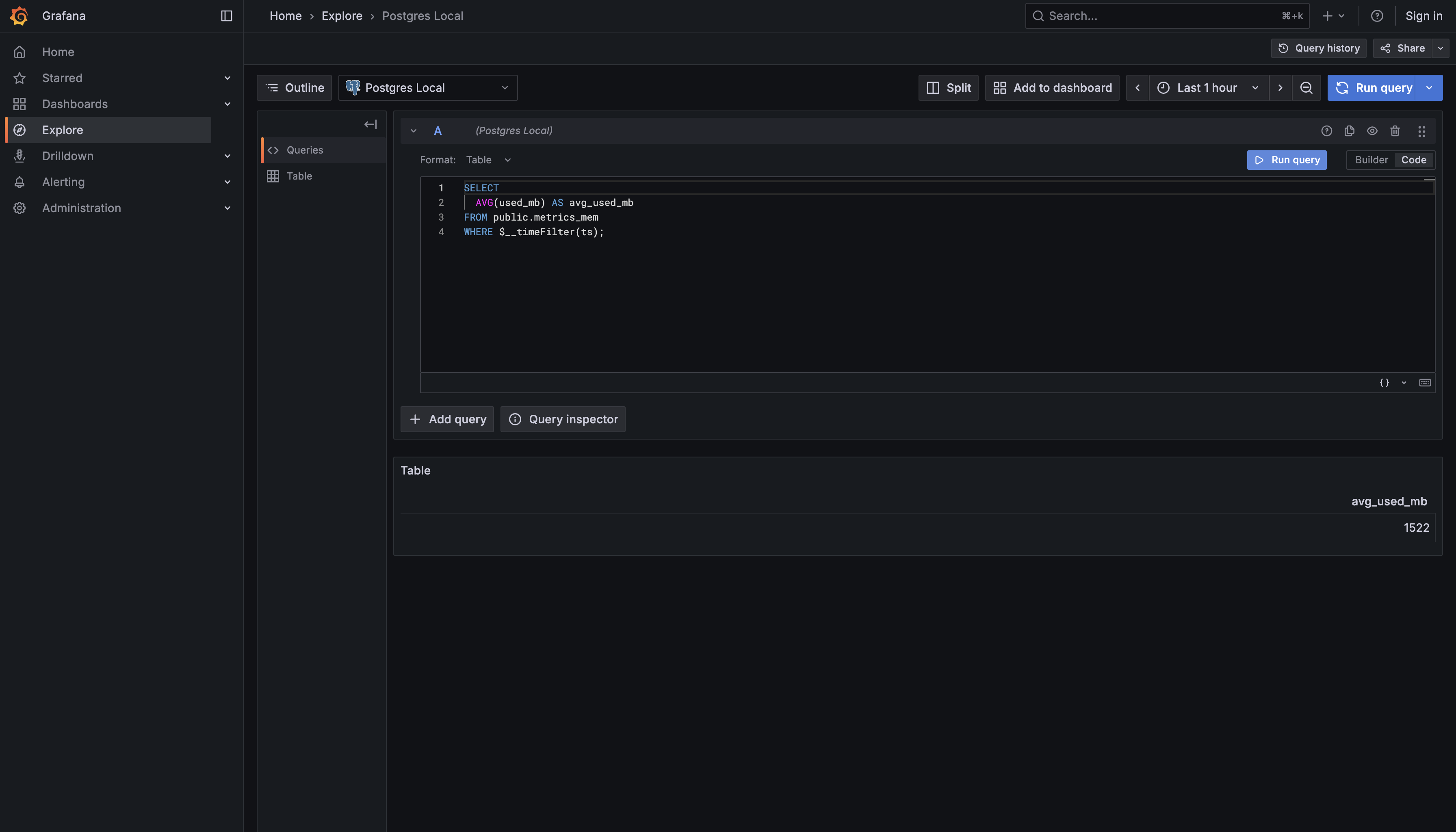
This is where Stat Panels come in. While time-series panels show you trends and patterns over time, Stat Panels distill your data down to one key summary value. Instead of drawing lines and curves, they display a single, prominent number — often with color coding to indicate if things are healthy or concerning. By the end of this lesson, you'll write a query that calculates the average memory usage across your selected time range and displays it in a Stat Panel. This new skill complements what you learned in the last lesson, giving you a complete toolkit for building informative dashboards.
Understanding Stat Panels vs Time-Series Panels
Let's take a moment to understand the fundamental difference between the two types of visualizations you're working with. In your last lesson, your CPU query returned many rows — one for each timestamp and host combination. When you ran that query with the Time series format selected, Grafana took all those rows and drew them as connected lines on a graph. That's perfect when you want to see how values change over time.
Stat Panels work differently. They expect your query to return just one row with one value. Instead of plotting multiple data points on a chart, Grafana takes that single number and displays it big and bold on your dashboard. It's the difference between a detailed graph showing your car's speed every second during a trip versus just displaying "Average Speed: 65 mph" at the end.
You'll use Stat Panels when you need to show averages, totals, current status indicators, or counts. For example, "Total Errors: 23," "Average Response Time: 142ms," or "Active Users: 1,847." These are metrics where seeing the overall summary is more important than tracking every individual fluctuation. They're particularly useful at the top of dashboards, where you want to provide quick status checks before diving into detailed time-series graphs below.
The key technical difference is in the query structure. Remember how your time-series query had to carefully rename columns to time, value, and metric? Stat Panel queries don't need that structure at all. In fact, they work better with aggregate functions that collapse many rows down to summary statistics. This is where SQL functions like AVG(), SUM(), COUNT(), MIN(), and MAX() become your best friends.