Introduction: Scenes as Collections of Objects

In the previous two lessons, you've made remarkable progress in your ray tracing journey. You started by rendering a single red sphere, learning the mathematics of ray-sphere intersection. Then, you added surface normals to give that sphere a sense of depth and three-dimensionality through color-coded shading. However, if you look at your current output, you'll notice something that limits its realism: you're rendering just one object floating in space against a gradient background.

Real-world images, whether photographs or computer-generated, rarely show isolated objects in empty space. Instead, they depict scenes — collections of multiple objects arranged in a meaningful environment. A coffee cup sits on a table. A building stands on the ground. A planet orbits in front of distant stars. The relationships between objects, how they occlude each other, and how they share the same space are what make images feel complete and believable.

In this lesson, you'll learn how to render scenes containing multiple objects. Specifically, you'll build a simple but effective scene: a small sphere sitting on what appears to be a large ground plane. This ground will be created using a clever trick — a very large sphere positioned below your small sphere. By the end of this lesson, your ray tracer will be able to handle any number of objects, correctly determining which object is visible at each pixel by finding the closest intersection point along each ray.

The core challenge we'll address is this: when a ray passes through your scene, it might intersect multiple objects. How do you determine which object should actually be visible? The answer lies in finding the closest hit — the intersection point nearest to the camera. This concept is fundamental to all ray tracing and 3D rendering systems, from simple educational ray tracers like ours to production renderers used in film and game development. Understanding how to manage multiple objects and find the closest intersection will prepare you for building increasingly complex and realistic scenes in future lessons.

The Multiple Intersection Problem

Let's think carefully about what happens when you add a second sphere to your scene. Imagine you have your original small sphere at position (0, 0, -1) with a radius of 0.5, and you add a much larger sphere centered at (0, -100.5, -1) with a radius of 100. This large sphere is positioned so that its top surface is just below your small sphere, creating what looks like a ground plane.

Now, consider a ray that travels from your camera through a pixel. This ray might intersect both spheres. In fact, for many pixels in your image, the ray will hit the large ground sphere first (since it's so big), then continue and hit the small sphere, then exit the small sphere and hit the ground sphere again on the far side. So, a single ray could have four intersection points with your two-sphere scene.

Which intersection should determine the pixel's color? If you simply colored the pixel based on the first intersection you happened to calculate, your results would be unpredictable and wrong. The order in which you test objects shouldn't matter — what matters is which object is actually closest to the camera along that ray. This is the essence of the occlusion problem: objects that are nearer to the camera should block (occlude) objects that are farther away.

The solution is conceptually straightforward: for each ray, you need to test intersection with all objects in your scene, calculate the distance to each intersection point, and then use only the closest one. The intersection with the smallest positive t value is the one that's visible, because t represents the distance along the ray from the camera. A smaller t means the intersection point is closer to the camera.
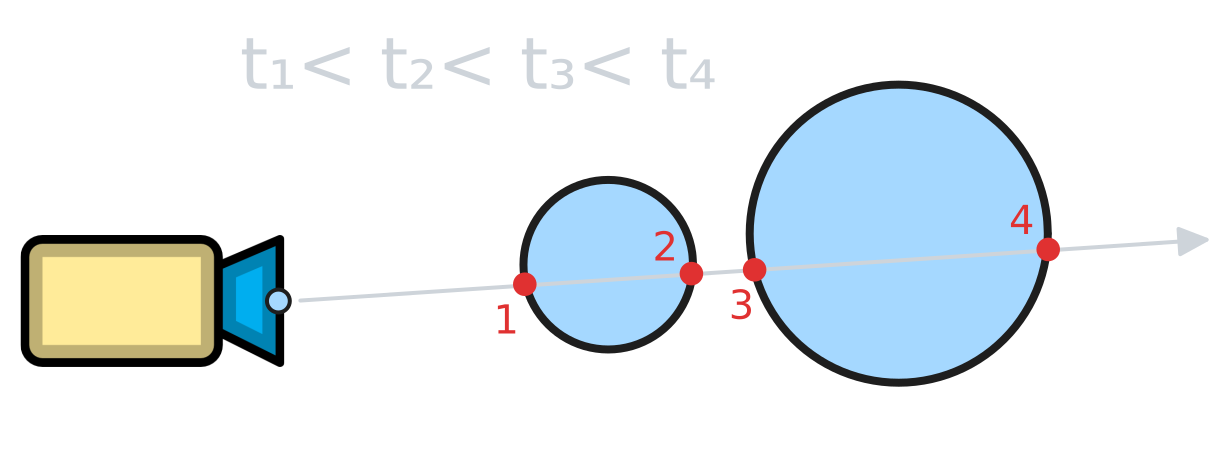
This closest-hit algorithm is fundamental to ray tracing. Without it, you can't correctly render scenes with multiple objects. Objects would appear to float through each other, or you'd see the far side of objects showing through the near side. The algorithm ensures that your rendered image respects the spatial relationships between objects, creating the proper sense of depth and occlusion that makes 3D scenes look correct.

Capturing Intersection Data with hit_record

In the previous lesson, you modified hit_sphere() to return a boolean indicating whether a hit occurred and to pass back the t value through a reference parameter. This worked well for a single sphere, but now that we're dealing with multiple objects and need to track the closest hit, we need to capture more information about each intersection.

Think about what data we need when a ray hits a surface. We need the t value (the distance along the ray), certainly. We also need the actual 3D point where the intersection occurred, because we'll use that to compute lighting in future lessons. We need the surface normal at that point, which we're already using for our color-coded visualization. And there's one more piece of information that will become important: whether the ray hit the front face or the back face of the surface.

The concept of front-facing versus back-facing surfaces might seem subtle, but it's important for correct rendering. A surface is front-facing if the ray hits it from outside the object, and back-facing if the ray hits it from inside. For a sphere, the front face is the outer surface and the back face is the inner surface. Why does this matter? Because the surface normal should always point toward the side the ray came from. If we hit the front face, the normal should point outward. If we hit the back face (imagine a ray starting inside a glass sphere), the normal should point inward. This ensures that lighting calculations work correctly regardless of which side of a surface we're viewing.

To organize all this intersection data cleanly, we'll create a structure called hit_record. In C++, a struct is a way to group related data together. Here's our hit_record definition:

This struct bundles together everything we need to know about a ray-surface intersection. The p field stores the 3D hit point. The normal field stores the surface normal at that point. The field stores the ray parameter (distance) to the hit point. And the field is a boolean that tells us whether we hit the front or back of the surface.

The Closest Hit Algorithm

Now that we have a way to store intersection data in a hit_record, we can implement the algorithm for finding the closest hit among multiple objects. The strategy is straightforward but important to understand thoroughly, as you'll use variations of this pattern throughout your ray tracing work.

The algorithm works like this: we maintain a variable that tracks the closest intersection distance we've found so far. We initialize this to infinity, meaning we haven't found any intersection yet. Then, we loop through all objects in the scene, testing each one for intersection. Whenever we find an intersection that's closer than our current closest distance, we update both the closest distance and save that intersection's complete information in our hit_record.

There's a crucial detail in how we test for intersections: we don't just ask, "Does this ray hit this object?" Instead, we ask, "Does this ray hit this object within a certain range of t values?" This range is defined by two parameters: t_min and t_max. The t_min parameter (which we'll set to a small positive value like 0.001) prevents us from accepting intersections that are too close to the ray origin. This avoids a problem called "shadow acne," where floating-point precision errors can cause a surface to incorrectly shadow itself. The t_max parameter ensures we only consider intersections that are closer than the closest hit we've found so far.

Here's how this looks in code within our ray_color() function:

Implementing the Multi-Object Scene

To make our closest-hit algorithm work, we need to update our hit_sphere() function to accept the range parameters and work with the hit_record structure. Here's the updated function:

The mathematical core of the function remains the same — we still solve the quadratic equation to find where the ray intersects the sphere. However, the function now takes two additional parameters: t_min and t_max, which define the valid range of intersection distances. Instead of passing back just a t value, we now pass back a complete hit_record through a reference parameter.

The key change is in how we validate the intersection points. After computing the discriminant and confirming that intersections exist, we calculate the first root (the nearer intersection). We then check whether this root falls within the valid range [t_min, t_max]. If it doesn't, we try the second root (the farther intersection). If neither root is in the valid range, we return false to indicate no valid intersection was found.

When we do find a valid intersection, we fill in all the fields of the hit_record. We store the value, compute the hit point using , calculate the outward normal by dividing the vector from center to hit point by the radius, and then call to set both the and fields correctly. Finally, we return true to indicate success.

Understanding Your Results and What's Next

What you’ve accomplished in this lesson is a core concept in 3D rendering: your ray tracer can now handle scenes with multiple objects and correctly determine which object is visible at each pixel by finding the closest intersection. This closest-hit algorithm ensures proper occlusion, so nearer objects block those behind them, just as in real life.

The ground in your image is actually a huge sphere, cleverly used to simulate a flat plane. Because the sphere is so large, its surface appears flat in the rendered image, creating the illusion of a ground beneath your smaller sphere.

With this structure in place, you can now extend your scene by adding more objects, and the same logic will automatically handle their visibility and occlusion. This foundation prepares you for the next steps: adding realistic materials, lighting, and building more complex and visually rich scenes.

Sign up
Join the 1M+ learners on CodeSignal
Be a part of our community of 1M+ users who develop and demonstrate their skills on CodeSignal