Introduction: Rendering Your First 3D Object

Welcome to the first lesson in our ray tracing journey! In this lesson, you'll learn how to render your first actual 3D object: a simple sphere. By the end of this lesson, you'll have a working ray tracer that displays a red sphere floating in front of a blue-to-white gradient background.

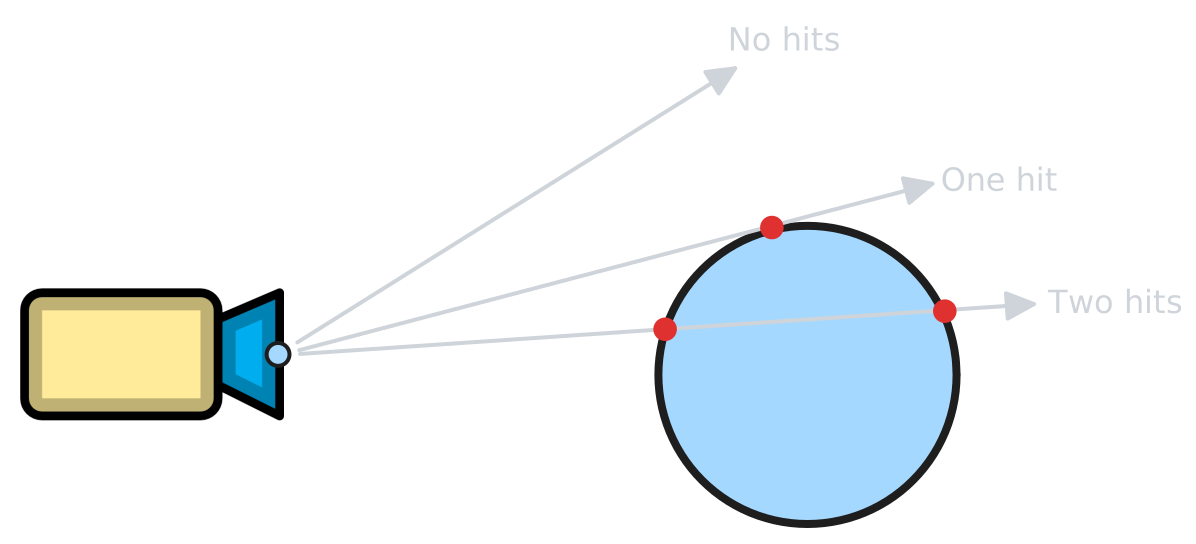
The key challenge we'll tackle is understanding ray-sphere intersection. When we shoot a ray from our camera through each pixel, we need to determine whether that ray hits our sphere, and if so, where. This is a fundamental problem in ray tracing, and solving it requires some geometry and algebra. Don't worry, though — we'll break down the mathematics step by step and show you exactly how it translates into working C++ code.

Our approach will be mathematical but practical. We'll use the implicit equation of a sphere and combine it with our ray equation to create a quadratic equation we can solve. This might sound complex, but you'll see that the code is actually quite straightforward once you understand what each piece is doing.

The Implicit Equation of a Sphere

Before we can determine if a ray hits a sphere, we need a mathematical way to describe what a sphere actually is. In geometry, we use something called an implicit equation. An implicit equation defines a surface by specifying a condition that all points on that surface must satisfy.

For a sphere, the condition is simple: every point on the sphere's surface is exactly the same distance (the radius) from the sphere's center. If we have a sphere centered at point c with radius r, and we want to know if some point p is on the sphere's surface, we check whether the distance from p to c equals r.

In mathematical notation, we write this as: |p - c|² = r²

The left side of this equation, |p - c|², represents the squared distance from point p to the center c. We use the squared distance because it's computationally cheaper to calculate (we avoid the square root operation), and it works just as well for our purposes. If this squared distance equals r², then point p is exactly on the sphere's surface.

In our C++ code, we can express this using the dot product. Remember that the squared length of a vector v is the same as the dot product of v with itself: |v|² = v · v. So our sphere equation becomes: (p - c) · (p - c) = r²

This formulation is perfect for ray tracing because we can easily compute dot products using our vec3 class. The equation tells us everything we need to know: given any point in 3D space, we can test whether it lies on our sphere's surface.

The Ray-Sphere Intersection Problem

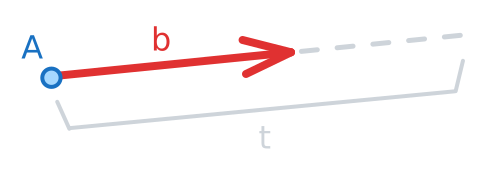
Now that we know how to describe a sphere mathematically, we need to figure out where (or if) a ray intersects it. Remember that a ray is defined by its origin A and direction B, and any point along the ray can be written as r(t) = A + tB, where t is a scalar parameter representing how far along the ray we've traveled.

The intersection problem asks: for which values of t does the ray equation satisfy the sphere equation? In other words, we want to find values of t where the point A + tB lies on the sphere's surface.

We substitute the ray equation into the sphere equation: (A + tB - c) · (A + tB - c) = r²

Let's simplify this by defining oc = A - c, which is the vector from the sphere's center to the ray's origin. Our equation becomes: (oc + tB) · (oc + tB) = r²

When we expand this dot product, we get: oc · oc + 2t(B · oc) + t²(B · B) = r²

Rearranging to standard form gives us: (B · B)t² + 2(B · oc)t + (oc · oc - r²) = 0

This is a quadratic equation in the form xt² + yt + z = 0, where:

  • x = B · B (the squared length of the ray's direction)
Implementing the hit_sphere() Function

Now let's translate this mathematics into C++ code. We'll create a function called hit_sphere() that takes a sphere's center, radius, and a ray, then returns the t value where the ray first hits the sphere (or -1.0 if there's no hit).

Here's the complete implementation:

Let's walk through this code carefully. First, we calculate oc, which is the vector from the sphere's center to the ray's origin. This is our oc vector from the mathematical derivation.

Next, we compute the coefficients of our quadratic equation. The variable a is the dot product of the ray's direction with itself, which gives us the squared length of the direction vector. The variable c is the squared distance from the ray's origin to the sphere's center, minus the squared radius.

You might notice something interesting: we're using half_b instead of b. This is a common optimization in ray tracing. If you look at the quadratic formula, you'll see that b always appears with a factor of 2. By defining half_b = d · oc (without the factor of 2), we can simplify our discriminant calculation to instead of . Both give the same result, but our version requires fewer operations.

Integrating Sphere Detection into Your Ray Tracer

With our hit_sphere() function ready, we can now integrate it into our ray tracer. We'll modify the ray_color() function to check whether each ray hits our sphere and color those pixels accordingly.

Here's the updated ray_color() function:

This function first calls hit_sphere() with a sphere positioned at (0, 0, -1) with radius 0.5. The sphere is placed one unit in front of the camera (negative z direction) and is small enough to fit nicely in our viewport. If hit_sphere() returns a positive t value, we know the ray hit the sphere, so we return a solid red color.

If the ray doesn't hit the sphere (t is -1.0 or negative), we fall through to the background gradient code. This creates a nice blue-to-white gradient that makes our sphere stand out clearly.

The complete main function brings everything together:

Summary and What's Next

Congratulations! You've just rendered your first 3D object using ray tracing. Let's recap what you've learned in this lesson.

You started by understanding the implicit equation of a sphere, which mathematically defines all points on a sphere's surface as being exactly one radius away from the center. You then learned how to combine this sphere equation with the parametric ray equation to create a quadratic equation. By solving this quadratic equation, you can determine exactly where (and if) a ray intersects a sphere.

You implemented the hit_sphere() function, which encapsulates all of this mathematics in a clean, reusable piece of code. This function calculates the quadratic coefficients, checks the discriminant to see if an intersection exists, and returns the distance to the nearest intersection point. Finally, you integrated this function into your ray tracer, creating an image with a solid red sphere against a gradient background.

The mathematics you learned here — particularly the ray-sphere intersection algorithm — is fundamental to ray tracing. This same pattern of substituting a ray equation into a surface equation and solving for t will appear again and again as you add more complex geometry to your scenes.

In the upcoming practice exercises, you'll get hands-on experience modifying this code. You'll experiment with different sphere positions and sizes, explore what happens when spheres overlap, and deepen your understanding of how the intersection mathematics works in practice. This foundation will prepare you for the next steps in building a complete ray tracer, including adding proper surface normals, lighting, and multiple objects.

Sign up
Join the 1M+ learners on CodeSignal
Be a part of our community of 1M+ users who develop and demonstrate their skills on CodeSignal