Packaging Visualization Expertise into Agent Skills
Introduction: From User-Triggered Commands to Model-Triggered Skills
In the previous lesson, you learned to package prompts into slash commands that you trigger explicitly by typing /command-name. But what if Claude could recognize when a capability is needed and apply it automatically? Imagine describing a visualization problem in plain English, and Claude realizes on its own that it should follow your chart styling guidelines, reference your style guide, and use your template scripts — all without you invoking a specific command.
This is exactly what Agent Skills provide. Skills are modular capability packages that Claude triggers automatically based on the context of your request. For complex visualization workflows with detailed processes for styling, templates, or layout conventions, Skills let Claude access deep capabilities only when relevant — keeping your context lean while enabling powerful, specialized behavior.
How Skills Work: Discovery and Automatic Triggering
Skills live in dedicated directories that Claude scans when starting a session. There are two locations where you can place them:
| Location | Scope |
|---|---|
| .claude/skills/ | Project-specific Skills available only in this project |
| ~/.claude/skills/ | Personal Skills available across all your projects |
For visualization workflows tied to a specific dataset and style guide — like your penguin analysis project — project-level Skills in .claude/skills/ are typically what you want. Personal Skills are useful for general-purpose capabilities you use everywhere, such as code review patterns or documentation standards.
When you start a Claude Code session, Claude discovers all available Skills by scanning these directories. Each Skill includes a description that tells Claude the types of requests it applies to. When you ask a question or describe a task, Claude evaluates the intent of your request against these descriptions. This is not a simple keyword match; Claude uses its semantic understanding to determine if the underlying goal of your query aligns with the Skill's purpose. If there is a match, Claude loads that Skill's instructions and resources.
The key distinction from slash commands is this: you do not type /skill-name to activate a Skill. Claude decides to use it based on what you are asking. This means Skills work silently in the background, bringing domain expertise into the conversation exactly when it is needed.
Anatomy of a Skill: Directory Structure
A Skill is a folder inside .claude/skills/ (or ~/.claude/skills/ for personal Skills). The folder name becomes the Skill's identifier. Here is the minimal structure:
The SKILL.md file is the only required component — a minimal Skill could contain just this file. You can add any supporting resources your Skill needs: documentation files, code templates, configuration examples, or reference data. These additional resources make the Skill more powerful by giving Claude concrete references and executable code to work with.
Building the Matplotlib Assistant Skill
Let's build a matplotlib assistant Skill for your penguin visualization project. This Skill will help create visualizations using project templates and styling standards. Here is the complete directory structure:
Inside our matplotlib-assistant folder, we have:
SKILL.md: The required core file containing metadata and instructionsSTYLE_GUIDE.md: Documentation for visual standards like colors, fonts, and dimensionsTEMPLATES.md: Reference guide explaining available templates and their use casestemplates/: Directory of ready-to-usePythonscripts for different visualization needs
We'll start by writing the SKILL.md file, which defines how Claude discovers and uses this Skill.
Writing the SKILL.md File
Every SKILL.md file begins with YAML frontmatter enclosed between triple dashes (---). As a reminder from the previous lesson, YAML frontmatter is a block of metadata at the top of a Markdown file. For Skills, two fields are essential:
name: A short, descriptive identifier for theSkilldescription: A sentence explaining what thisSkilldoes and when it applies
The description is especially important because it guides Claude's triggering decisions. When you ask Claude something, it reads these descriptions to determine which Skills are relevant. A clear, specific description helps Claude match your request accurately.
Below the frontmatter, the body contains instructions that Claude follows when this Skill is triggered. Good Skill instructions are clear and sequential, specific about expectations, and connected to bundled resources by filename.
Here is the complete SKILL.md for our matplotlib assistant:
Notice how the instructions define a clear workflow with numbered steps. The Skill references bundled files like TEMPLATES.md and STYLE_GUIDE.md so Claude knows where to find detailed guidance. The "When to Use This Skill" section helps Claude understand exactly which requests should trigger this capability.
Bundling Style Documentation
The STYLE_GUIDE.md file captures your project's visual standards in a format Claude can reference when generating or reviewing code. Here is a preview of the style guide for our matplotlib assistant:
The full style guide includes sections on sequential colormaps, export settings for different contexts, layout best practices, and common mistakes to avoid. When Claude applies the Skill, it reads this document to ensure all generated code follows your established conventions.
Bundling Additional Resources
The remaining files complete the Skill by providing template documentation and executable code:
-
TEMPLATES.mddescribes each template in thetemplates/directory, explaining when to use each one and what customization points are available. This helpsClaudematch user requests to the appropriate starting point. -
templates/quick_plot.pyprovides minimal setup for rapid data exploration during analysis sessions. -
templates/multi_panel.pyhandles subplot management for comparing multiple variables or species side-by-side. -
templates/publication.pyincludes full styling, annotations, and high-resolution export settings for final deliverables.
By bundling executable templates, you give Claude concrete starting points that already encode your standards. Claude can provide these directly or adapt them for specific user needs.
Progressive Disclosure: Loading Capabilities On-Demand
In Lesson 1, you learned how the CLAUDE.md file provides context that loads at the start of every session. This approach works well for information Claude should always know — like your basic color palette or coding conventions. However, loading extensive detail about every possible task would overwhelm Claude's context window and slow down simple requests.
Skills solve this problem through progressive disclosure. Claude learns about your Skills at a high level by reading their names and descriptions. This metadata is lightweight — just a sentence or two per Skill. The full instructions and bundled resources load only when Claude determines a Skill is relevant to your current request.
| Method | Loads When | Best For |
|---|---|---|
CLAUDE.md | Every session start | Universal project standards |
| Slash commands | User types /command | Explicit, repeatable tasks |
Skills | Claude matches request to description | Complex, automatic capabilities |
This layered approach keeps your base context lean. Your CLAUDE.md might contain your core color palette, but the detailed templates, style documentation, and code examples live in Skills. Claude accesses them on-demand — only when you are actually working on tasks that require them.
Seeing the Skill In Action
With the Skill in place, here is how an interaction begins. While Skills are designed to trigger automatically based on the context of your request, you can also explicitly mention a Skill by name to ensure Claude uses a specific toolset—this is especially helpful during development to ensure consistent behavior.
Note: While
Claudeis excellent at semantic matching, it may sometimes need a "nudge" to trigger a specificSkillif the request is broad. Explicitly mentioning theSkillname (as shown below) ensuresClaudeloads the specific instructions and resources you've provided.
Notice the permission prompt that appears when Claude first uses a Skill. This works just like a tool call — Claude recognizes that your request matches the Skill's description (or your explicit request) and requests permission to load its instructions and resources. This gives you control over which Skills can execute and when.
Following the Skill Workflow
Once you approve the Skill, Claude follows the workflow defined in SKILL.md. Here is the rest of the interaction:
The resulting visualization demonstrates how Claude applied the Skill's guidelines:
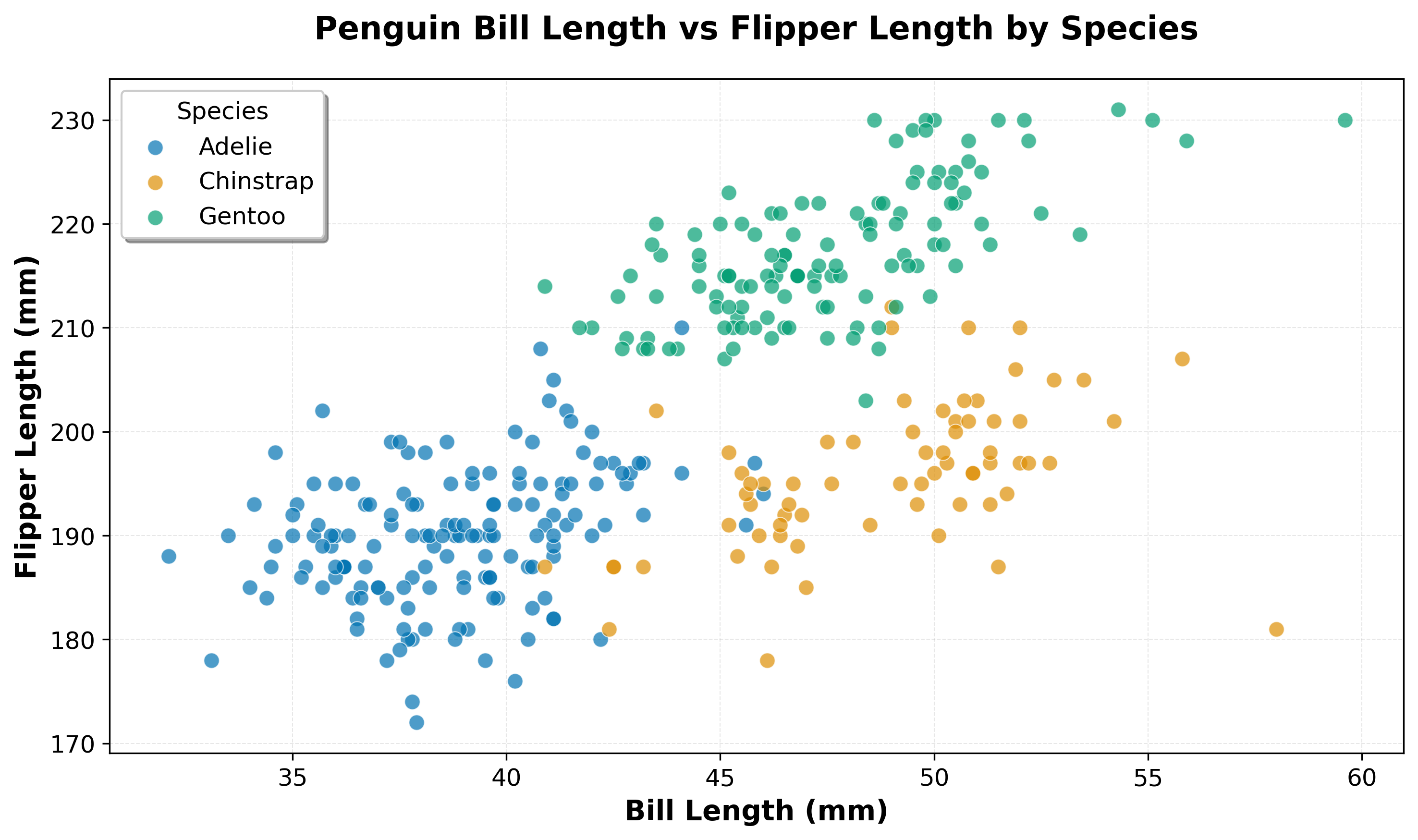
Notice how the output follows the STYLE_GUIDE.md conventions: the colorblind-safe palette from COLORS_ACCESSIBLE, clean axes with hidden top and right spines, proper labels with units, and a legend positioned outside the data area. Claude generated code that embodies your project standards without you having to specify each detail — the Skill provided that guidance automatically.
Summary and Practice Preview
You have learned how to build Agent Skills that give Claude specialized capabilities it can apply automatically. Skills are model-triggered and live in .claude/skills/, with YAML frontmatter guiding discovery and bundled resources keeping everything self-contained. Progressive disclosure ensures Claude loads Skill content on-demand, keeping your base context lean while enabling deep expertise.
In the upcoming practice exercises, you will build your own visualization Skills from scratch. You will create Skills that help with chart creation, apply styling standards, and provide appropriate templates — all triggered automatically when Claude recognizes the relevant context. Get ready to give Claude deep visualization expertise that activates exactly when you need it.