Partitioned Order Value Windows
Introduction
Welcome back to Window Functions Fundamentals. We are now in Lesson 2 of 4, and we are ready to move from one whole result window to several smaller calculation groups. In Lesson 1, we used an empty OVER() to repeat overall order value and average order value beside every order. Today, each order_item_id will stay visible while we add two group metrics: total order value for its category and total order value for its customer’s country.
We will build the report gradually: first establish the line item grain with a CTE, then add PARTITION BY category_name, connect each item to a country, and finally round and sort the result. Our main goal is to add useful context without replacing detail.
Establish the Line Item Grain with a CTE
As you may recall from our earlier CTE work, each stage needs a clear row contract. The line_sales CTE will promise one row per order_item_id. We begin with OrderItems, join Products for product information and price, and join Categories for the business group. We calculate line order value as quantity × product_price before any window function is applied.
Notice what is missing: GROUP BY. That omission is intentional. It lets every order item continue into the outer query. The final ORDER BY arranges the display by category and product, then uses the unique order item identifier to resolve ties. We now have the detailed input needed for partitioned calculations.
Understand PARTITION BY Versus Grouped Summaries
Before adding a window, let us compare the grouped version of the question: how much order value belongs to each category? This query is a valid summary, but it changes the row grain:
Here, GROUP BY produces one row per category. first_product_id exists only to make this comparison’s display order stable.
A partitioned window uses the same business grouping differently: SUM(line_order_value) OVER (PARTITION BY category_name) creates a calculation set for each category, then repeats the result on every matching detail row. PARTITION BY defines membership, not display order.
The following schematic highlights the difference in row grain.
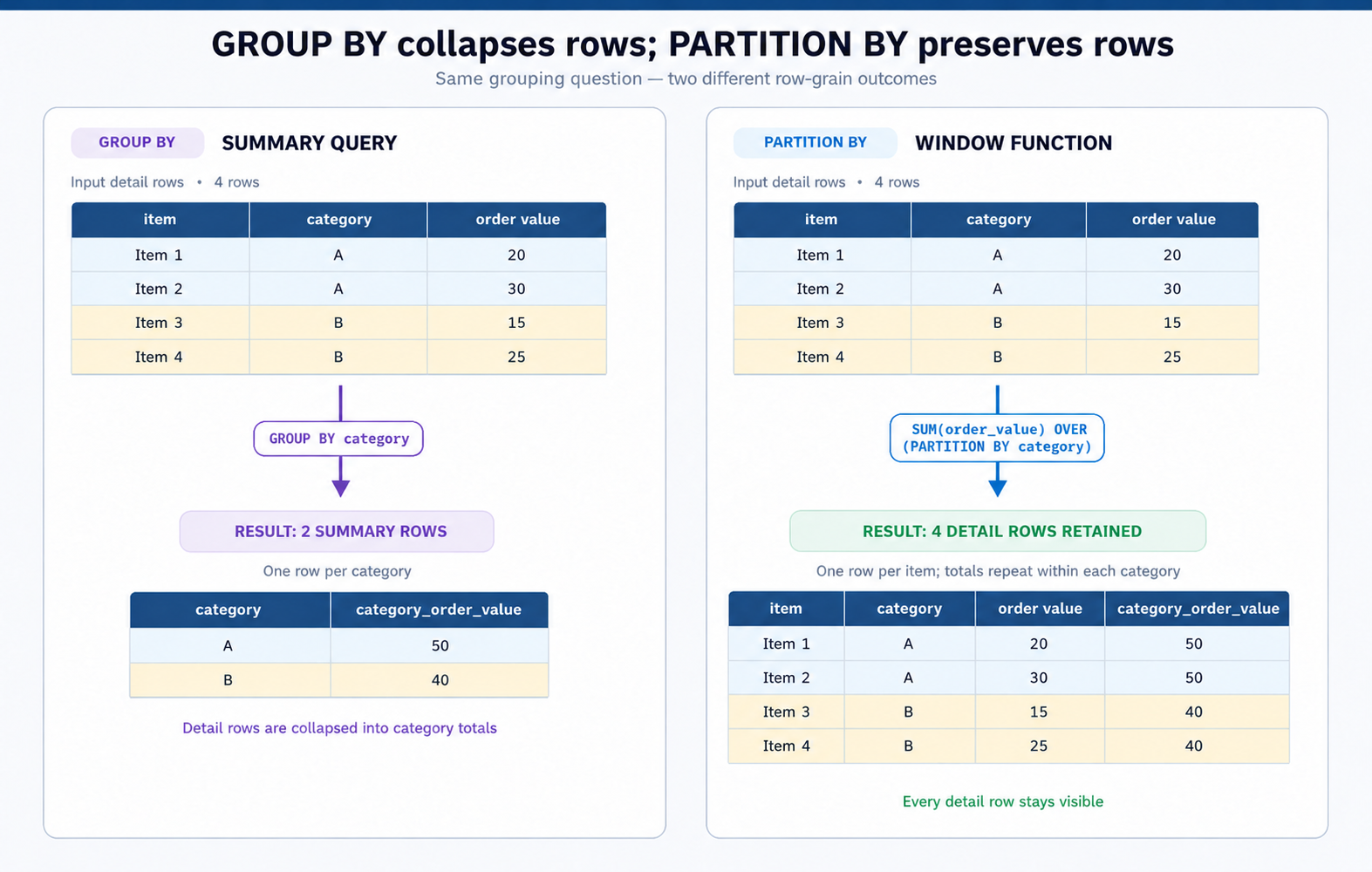
Because we want a complete category total, we omit a window ORDER BY. As we saw in Lesson 1, adding an ordered window would introduce frame and tie behavior. Also, remember that window functions run after GROUP BY, so if both appear in one query, the window sees grouped rows.
Add Category Order Value Beside Each Line Item
Now we place the category total beside each line item. The CTE remains unchanged, and the window expression goes in the SELECT list. MySQL sums all line_order_value values whose category_name matches the current row, while leaving the current row intact.
Different products can have different line_order_value values, but rows in the same category share one category_order_value. We still have no GROUP BY, and we still omit ORDER BY inside OVER, because this is a complete partition total rather than a running value. The final sort includes order_item_id, so repeated product names remain deterministic.
Here is an illustrative preview in the MySQL client’s --table style. The values are examples; the repeated category total is the important pattern.
Add an Independent Country Order Value Partition
The category partition uses product information, but the country is attached to the customer who placed the order. We therefore extend the CTE through Orders and then Customers. These many-to-one joins add country without changing the one-row-per-order_item_id contract.
The final SELECT now has two independent windows. One groups rows by category_name; the other groups rows by country. They both read the same line-level order value, but they answer different questions.
We do not combine the columns into PARTITION BY category_name, country, because that would calculate a smaller combined group. No additional GROUP BY or window ORDER BY is needed.
Format and Finalize the Deterministic Report
Before formatting, recall the placement rule from Lesson 1: a window expression cannot appear directly in WHERE, GROUP BY, or HAVING in the same query block. If a report ever needs to filter on a group total, compute it in one CTE and filter the named result in an outer query. The report below needs no filter, so a single line_sales CTE is enough.
We now round the individual line value and both complete partition sums to two decimal places. Rounding wraps the final expressions, so the sums are calculated first. The complete statement is:
This query preserves one row for every order_item_id, repeats the correct category and country totals, and applies the required formatting. When we run it, we should confirm the following:
- Each
order_item_idappears once; matching categories share onecategory_order_value; matching countries share onecountry_order_value; the two group totals can differ; and all three order value columns display two decimal places.
Conclusion and Next Steps
Today we moved from the single whole-result window in Lesson 1 to independent group windows. We created a line-level CTE with one row per order item, then used SUM(...) OVER (PARTITION BY category_name) and SUM(...) OVER (PARTITION BY country) to repeat complete totals without collapsing detail. We also separated calculation order from display order, kept complete totals free of window ORDER BY, applied rounding at the end, and reviewed how to filter a window result through an outer query.
In the practice section, we will inspect the grouped starter query, add the category partition, extend it to country, and finish the formatted, deterministic report. Bring this careful row grain into the practical exercises, where we will build the report one confident step at a time before Lesson 3 introduces ordered running order value.
