What is the Claude Agent SDK?
Introduction: Harnessing Claude Code Programmatically
Welcome to your first lesson in building with the Claude Agent SDK! If you've used Claude Code, Cursor, or similar AI coding agents, you already know the power of agents that can read files, run commands, and work through multi-step tasks. Now you're about to learn how to harness the agent runtime that powers Claude Code programmatically — building your own applications that leverage the full agent capabilities instead of just using them through a chat interface.
In this lesson, we'll establish the foundational mental model you need to understand the Claude Agent SDK and how it lets you control the agent runtime behind Claude Code from Python. You'll learn what the SDK is, how it relates to the Claude Code runtime, and why you need both components working together. We'll also walk through the complete installation and authentication process so your development environment is ready for the hands-on practice exercises that follow.
Claude Code: The Local Agent Runtime
Let's start with Claude Code, because understanding it is essential to understanding the SDK.
Claude Code is a local agent runtime combined with a command-line interface (CLI). Think of it as an execution environment where an AI agent can perform real actions on your computer, not just generate text responses.
Here's what Claude Code can do:
- File operations: Read, write, and edit files in your projects
- Shell commands: Execute bash commands and scripts
- Project navigation: Search through codebases, find patterns, analyze structure
- Built-in tools: Use tools like
WebSearch,WebFetch,Grep, andGlob - Multi-turn reasoning: Break down complex tasks into steps and work through them systematically
- Context management: Maintain conversation history, compact old messages, and load project-wide memory
These capabilities transform Claude from a text-generation model into an active participant in your development workflow. The key insight is that Claude Code combines local execution with cloud intelligence. The agent runtime runs on your machine (giving it access to your files and environment), but it connects to Claude's large language model in the cloud for reasoning and decision-making. This architecture allows the agent to understand your requests, plan appropriate actions, and execute them directly on your local system.
The Claude Agent SDK: Your Programmatic Interface
Now that you understand Claude Code, let's talk about the SDK.
The Claude Agent SDK is a programmatic interface that lets you control the Claude Code agent runtime from Python code. Instead of typing commands into a CLI, you write Python scripts that drive the agent programmatically.
This is important: the SDK is not just another "chat completion wrapper." It's not a simple API that sends prompts and receives text. Instead, it's an interface to a full agent system capable of performing actions.
Here's why you need the SDK:
-
Automation: You can build scripts that use agents to perform repetitive tasks — like refactoring code across multiple files, generating documentation, or analyzing logs.
-
Custom agents: You can create specialized agents with custom tools, specific system prompts, and tailored permissions for particular use cases.
-
Embedding in applications: You can integrate agent capabilities into your own applications — developer tools, research assistants, operational automation systems, or anything else that benefits from AI that can act.
-
Programmatic control: You can manage multi-turn sessions, stream partial outputs, attach custom tools, and build complex workflows that would be tedious to orchestrate through a CLI.
The SDK essentially unlocks the agent runtime's capabilities for programmatic use. While the CLI is perfect for interactive development work, the SDK lets you build applications that leverage agent capabilities as part of their core functionality. This opens up possibilities for creating developer tools, automated workflows, and intelligent systems that couldn't exist with just a chat interface.
How the Pieces Work Together: The Architecture
Understanding how the SDK and Claude Code relate is crucial, so let's be explicit about the architecture.
Here's what each component does:
-
Your Python script: This is your code using the Claude Agent SDK. You define what the agent should do, what tools it can use, and how it should behave.
-
Claude Code runtime: This is the agent engine. It handles tool execution, file operations, context management, and the reasoning loop. The SDK launches and controls this runtime as a subprocess.
-
Claude LLM: This is Anthropic's large language model in the cloud. It provides the intelligence — understanding tasks, planning steps, and generating responses.
Understanding this separation of concerns is fundamental to working effectively with the SDK. Your Python script orchestrates the high-level behavior, the local runtime provides the execution environment and tool capabilities, and the cloud-based language model supplies the reasoning and intelligence. Each component plays a distinct role, and together they create a powerful system where AI can understand complex tasks and execute them on your local machine.
Visualizing the Component Relationships
Here's a visual representation of how these components interact:
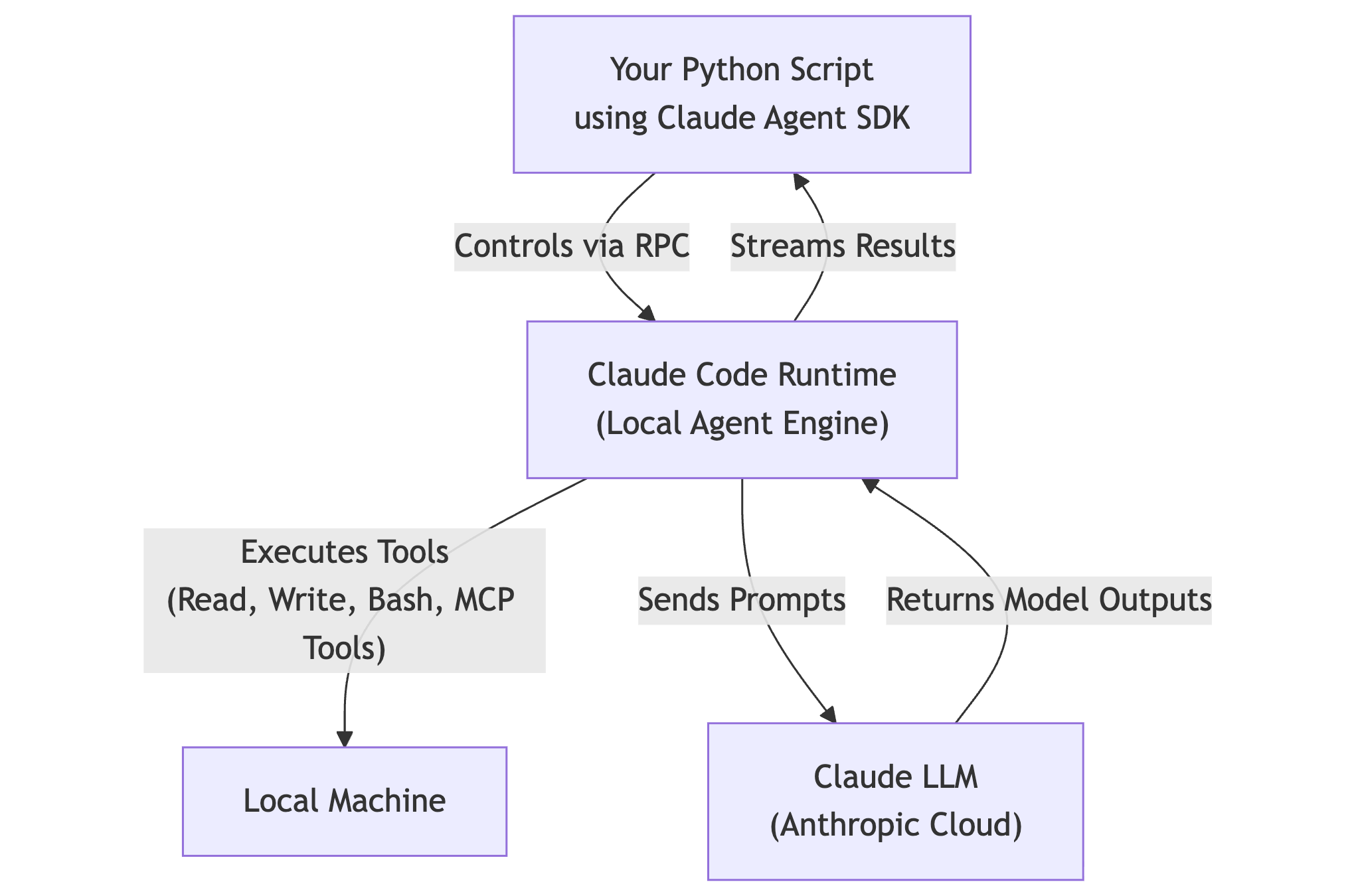
Why both components are required: Think of it this way — Claude Code is the engine, and the SDK is the remote control. The SDK doesn't re-implement the agent logic; it leverages all of Claude Code's existing capabilities (tools, subagents, memory, file handling, safety controls) by controlling the runtime programmatically.
This architecture means you get the full power of Claude Code's agent system, but with the flexibility to drive it from your own Python applications. Rather than building agent capabilities from scratch, you're tapping into a mature, tested runtime that already handles the complex details of agent orchestration, context management, and safe tool execution.
The Full Power of Claude Code's Agent Capabilities
By using the SDK, you inherit a sophisticated agent system with capabilities the Claude Code team has spent considerable engineering effort developing and refining. Your agent can perform powerful local operations — inspecting and editing files, generating code, executing shell commands, and debugging scripts. It comes with built-in tools like Read, Write, Bash, WebSearch, WebFetch, Glob, and Grep, and supports custom extensions through the Model Context Protocol (MCP) for services like Slack, GitHub, or Google Drive.
The agent excels at complex workflows:
- Break tasks into subtasks and spawn subagents to work in parallel
- Maintain context across multi-turn conversations
- Automatically compact old messages to manage token limits
- Load project-wide memory from files like
CLAUDE.md
These aren't simple features you'd want to implement yourself. The Claude Code team has invested significant engineering effort into making context management and multi-step reasoning robust and efficient, and you get all of this sophisticated machinery out of the box. Your agent can have extended work sessions where it remembers what it's done and builds on previous steps, enabling natural workflows where you guide the agent through complex tasks without re-explaining context at each step.
Installing Claude Code
In the CodeSignal coding environment, we've already installed everything you need — Claude Code, the SDK, and authentication are all configured. You can start coding immediately in the practice exercises.
However, if you want to set this up on your local machine later, you can install it on Linux or Mac with:
This installation script configures the necessary components automatically, giving you both the CLI and the agent runtime that the SDK controls.
If you need help setting up on your own machine or require installation options for other platforms, visit https://www.claude.com/product/claude-code for complete documentation and support resources.
Installing the Claude Agent SDK
On your own machine, you'd install the SDK with:
This package includes all the bindings and utilities you'll need to build applications with the agent runtime. With both components installed, you're ready to authenticate and start building.
Authentication Options
When setting up your own environment, you'll need to authenticate the runtime so it can communicate with Claude's cloud-based language model. You have two options.
The first is setting your API key as an environment variable:
This makes your key available to the runtime whenever it needs to connect. You can add this line to your shell configuration file (like .bashrc or .zshrc) to make it permanent across sessions.
The second option is logging in through the CLI:
This opens an authentication flow that stores your credentials locally. Either method works — choose whichever fits your development workflow better. Once authenticated, the runtime has everything it needs to power your agent interactions.
Summary: You're Ready to Build
You now understand the mental model behind the Claude Agent SDK: Claude Code is the local agent runtime (the engine) that can perform actions on your machine, and the SDK is the programmatic interface (the remote control) that lets you drive that runtime from Python code. You've installed both components and set up authentication so the runtime can connect to Claude's cloud-based language model.
Your development environment is now ready. In the practice exercises ahead, you'll start writing Python code that uses the SDK to create and control agents, seeing firsthand how to build applications that leverage the full power of the agent runtime.
