Rays and Simple Camera
Introduction: From Math to Light
In the previous lesson, you completed a deep dive into the vec3 class and gained a solid understanding of vector mathematics. You learned how vectors represent positions, directions, and colors, and you explored operations like addition, scalar multiplication, dot products, and cross products. You saw how the same vec3 class serves multiple purposes through type aliases like point3 and color. That lesson gave you the mathematical toolkit you'll need for everything that follows.
Now it's time to put that toolkit to work. In this lesson, we're making the crucial transition from mathematical foundations to actual ray tracing. We're going to create our first rays, build a simple virtual camera, and cast those rays into a scene. By the end of this lesson, you'll generate your first "traced" image — a beautiful gradient background that simulates a sky. While this might seem simple compared to rendering complex 3D objects, it represents a fundamental milestone: you'll be casting rays through pixels and determining colors based on those rays, which is the core mechanism of ray tracing.
The outcome of this lesson is concrete and visual. You'll implement a ray class that represents a ray with an origin and direction. You'll set up a virtual camera with specific parameters like aspect ratio, viewport dimensions, and focal length. You'll write code that casts a ray from the camera through each pixel of your image. And you'll implement a ray_color() function that returns a gradient color based on the ray's direction, creating a smooth transition from white at the bottom to blue at the top — just like a real sky.
This lesson is where ray tracing truly begins. Everything before this was preparation; everything after this will build on what you create today. The rays you define here will eventually intersect with spheres, planes, and other objects. The camera you build will evolve to support different viewing angles and perspectives. The color function will grow more sophisticated to handle lighting, shadows, and reflections. But it all starts with these fundamentals: rays, a camera, and a simple way to determine color. Let's begin by understanding what a ray really is.
Understanding Rays: The Math Behind P(t) = A + tb
At the heart of ray tracing is a deceptively simple mathematical concept: the ray. A ray is defined by two pieces of information — an origin point and a direction vector. Together, these two pieces let us describe an infinite line that starts at the origin and extends forever in the specified direction. In mathematical notation, we express a ray as a function of a parameter t:
P(t) = A + t·b
Let's break down what each part of this equation means. A is the origin of the ray, a point in 3D space represented as a point3 (which, as you know, is just a vec3). This is where the ray begins. b is the direction vector, also a vec3, which tells us which way the ray is pointing. The parameter t is a real number that lets us move along the ray. When t is zero, P(0) = A + 0·b = A, so we're at the origin. When t is one, P(1) = A + b, so we've moved one unit of the direction vector away from the origin. When t is two, we've moved two units, and so on.
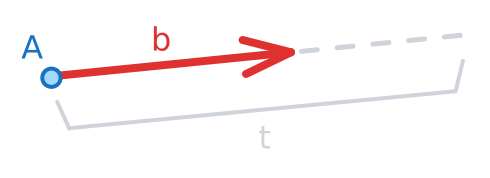
The beauty of this formulation is that by varying t, we can reach any point along the ray. If t is positive, we move forward from the origin in the direction of b. If t is negative (though we typically don't use negative values in ray tracing), we'd move backward. This parameterization gives us a way to "walk" along the ray and check for intersections with objects in the scene. When we ask, "Does this ray hit that sphere?" we're really asking, "Is there some value of t where P(t) lies on the surface of the sphere?"
Let's make this concrete with a real-world analogy. Imagine you're standing in a field with a laser pointer. Your position is the origin A. The direction you're pointing the laser is the direction vector b. The laser beam itself is the ray — an infinite line extending from your hand in the direction you're pointing. Now imagine you want to know where the laser beam is at different distances. If you want to know where it is one meter away, you calculate A + 1·b. If you want to know where it is five meters away, you calculate A + 5·b. The parameter t represents the distance along the beam.
In ray tracing, we use rays to simulate the paths that light takes through a scene. In the real world, light travels from sources (like the sun or a lamp) and bounces around until some of it reaches our eyes. In ray tracing, we reverse this process for efficiency. We shoot rays from the camera (representing our eye) into the scene and trace them backward to see what they hit. Each ray represents a potential path that light could have taken to reach the camera. By determining what each ray hits and how light would interact with those surfaces, we can calculate the color that should appear at each pixel.
This is why rays are the foundation of ray tracing. Every pixel in your final image corresponds to at least one ray cast from the camera. The color of that pixel is determined by tracing that ray through the scene, finding what it intersects, and calculating how light would behave at that intersection. Even in this lesson, where we're not yet intersecting any objects, we're still using rays to determine pixel colors — we're just basing the color on the ray's direction rather than on any intersection.
The ray equation P(t) = A + t·b is simple, but it's powerful. It gives us a mathematical way to represent light paths, to traverse those paths, and to ask questions about what lies along them. As we move forward, you'll see this equation appear again and again in different contexts. When we calculate ray-sphere intersections, we'll substitute the ray equation into the sphere equation and solve for t. When we calculate reflections, we'll use the ray equation to determine where reflected rays originate and which direction they travel. The ray is the fundamental building block of everything we'll do.
Building the Ray Class
Now that you understand what a ray is mathematically, let's implement it in code. We'll create a ray class that encapsulates the origin and direction and provides methods to work with them. This class will be simple — much simpler than the vec3 class — because a ray is conceptually simpler. It's just a container for two vectors and a way to evaluate the ray equation.
Create a new file called ray.h in your src directory. This header file will define our ray class. Let's start with the include guards and necessary includes:
We need to include vec3.h because our ray will use vec3 objects for both the origin and direction. The include guards prevent multiple inclusion, just like in vec3.h.
Now let's define the class itself. The class has two private data members: the origin and the direction. We'll call them orig and dir:
Let's walk through this implementation piece by piece. The class has two constructors. The first is a default constructor that takes no arguments: ray() {}. This creates an uninitialized ray, which isn't particularly useful, but it's good practice to provide a default constructor so you can create arrays of rays or use rays in contexts where default construction is required.
The second constructor is the one we'll actually use: ray(const point3& origin, const vec3& direction). This constructor takes two parameters — an origin point and a direction vector — and uses a member initializer list to set the private data members. Notice that we're using point3 for the origin and vec3 for the direction. As you learned in the previous lesson, these are both just aliases for vec3, but using different names makes our intent clear. The origin is a position in space, while the direction is a vector indicating which way the ray points.
The constructor parameters are passed by const reference (const point3& and const vec3&). This is an efficiency consideration. Passing by reference avoids copying the vectors, and the const keyword indicates that the constructor won't modify the arguments. For small objects like vec3, the performance difference is minimal, but it's good practice and becomes more important with larger objects.
Next, we have two accessor methods: origin() and direction(). These methods simply return the private data members. They're marked const because they don't modify the object — they just read and return values. These accessors let external code query the ray's origin and direction without directly accessing the private members. This encapsulation is a fundamental principle of object-oriented design: we hide the implementation details and provide a clean interface.
The most important method is at(double t), which implements the ray equation P(t) = A + t·b. This method takes a parameter t and returns the point along the ray at that parameter value. The implementation is straightforward: return orig + t * dir;. We multiply the direction vector by t (using the scalar multiplication we learned about in the previous lesson) and add it to the origin (using vector addition). The result is a point3 representing the position along the ray.
This at() method is how we'll traverse rays in our ray tracer. When we want to know where a ray is at a certain distance, we call at() with that distance. When we solve for ray-object intersections and find a value of t where the intersection occurs, we'll call at(t) to get the exact intersection point. This method is the practical implementation of the mathematical concept we discussed in the previous section.
Finally, we close the class definition and the include guard:
That's the complete ray class. It's remarkably simple — less than 20 lines of actual code — but it provides everything we need to represent and work with rays. The simplicity is a strength. The class has a single, clear purpose: represent a ray and allow us to evaluate points along it. It doesn't try to do anything else, which makes it easy to understand, easy to use, and easy to maintain.
Notice how the ray class builds directly on the vec3 class. We're using vec3 objects for both the origin and direction, and we're using vector operations (scalar multiplication and addition) in the at() method. This is the power of building abstractions in layers. We created a solid foundation with vec3, and now we're building the next layer on top of it. As we continue, we'll build even higher-level abstractions that use rays, and those will form the foundation for even more sophisticated features. Each layer relies on the layers below it, creating a stable, well-organized codebase.
Creating a Virtual Camera
Now that we have a way to represent rays, we need to create rays that correspond to pixels in our image. This is where the virtual camera comes in. The camera is our viewpoint into the 3D scene — it determines what we see and from what perspective. In this lesson, we'll implement a very simple camera model, sometimes called a pinhole camera, which is the most basic camera model used in computer graphics.
Before we write any code, let's understand the concept. Imagine you're looking through a window at a scene outside. Your eye is at a specific position (the camera position), and the window is the viewport — a rectangular region through which you see the world. Each point on the window corresponds to a direction you could look. If you look through the center of the window, you're looking straight ahead. If you look through the top-left corner, you're looking up and to the left. The window itself is positioned at some distance from your eye, which we call the focal length.
In our virtual camera, we'll set up a similar arrangement. The camera will be positioned at the origin of our coordinate system, at point (0, 0, 0). The viewport will be a rectangle positioned in front of the camera, perpendicular to the direction the camera is looking. We'll define the viewport's dimensions (width and height) and its distance from the camera (focal length). Then, for each pixel in our image, we'll calculate which point on the viewport that pixel corresponds to, and we'll create a ray from the camera position through that viewport point.
Let's define the parameters we need. First, we need to decide on an aspect ratio for our image. The aspect ratio is the ratio of width to height. Modern widescreen displays typically use a 16:9 aspect ratio, so let's use that:
Next, we need to choose an image width in pixels. The height will be calculated from the width and aspect ratio. Let's use 400 pixels wide, which will give us a reasonably sized image without taking too long to render:
We calculate the height by dividing the width by the aspect ratio. The static_cast<int> converts the result from a double to an integer, which is necessary because image dimensions must be whole numbers. With a width of 400 and an aspect ratio of 16/9, the height will be 225 pixels.
Now let's define the viewport dimensions. The viewport is measured in world space units, not pixels. We'll choose a viewport height of 2.0 units, which is arbitrary but convenient. The viewport width is calculated from the height and aspect ratio, just like the image dimensions:
With an aspect ratio of 16/9 and a height of 2.0, the viewport width will be approximately 3.56 units. The viewport's aspect ratio matches the image's aspect ratio, which ensures that our rendered image won't be distorted.
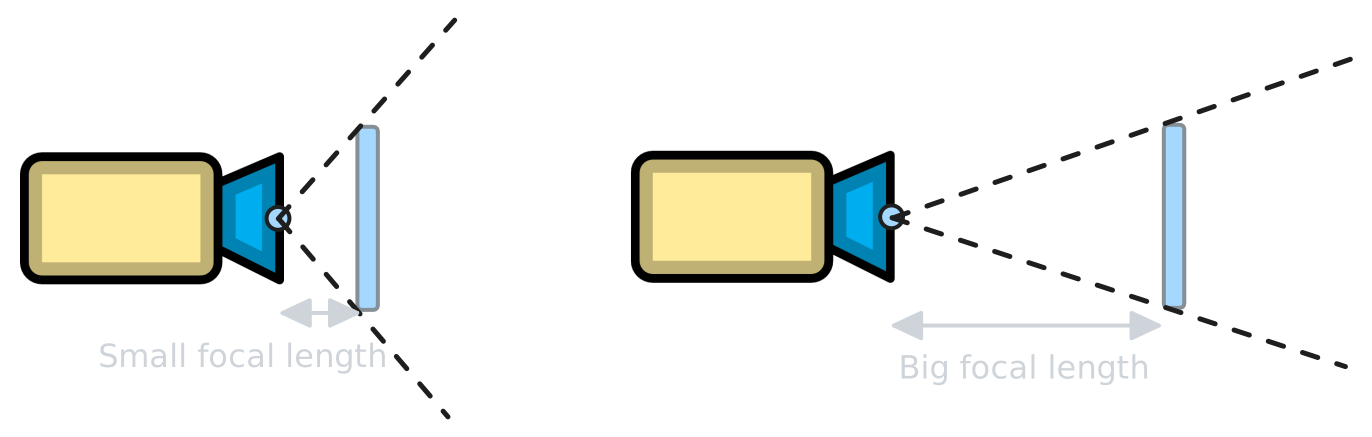
Next, we need to specify the focal length — the distance from the camera to the viewport. We'll use 1.0 unit:
This means the viewport is positioned 1.0 unit in front of the camera. The focal length affects the field of view (how much of the scene we can see), but for now, we're using a simple fixed value.
Now we can define the camera position. We'll place it at the origin:
To position the viewport in front of the camera, we need to define vectors that represent the viewport's horizontal and vertical extents. The horizontal vector spans the full width of the viewport along the x-axis:
The vertical vector spans the full height of the viewport along the y-axis:
These vectors will help us calculate positions on the viewport. If we want to move halfway across the viewport horizontally, we use horizontal/2. If we want to move a quarter of the way up vertically, we use vertical/4.
Finally, we need to calculate the position of the lower-left corner of the viewport. This will be our reference point for calculating positions of individual pixels. The lower-left corner is offset from the camera origin by half the horizontal extent to the left, half the vertical extent down, and the focal length forward (in the negative z-direction, since we're using a right-handed coordinate system where negative z points into the screen):
Let's trace through this calculation. We start at the origin (0, 0, 0). We subtract horizontal/2, which moves us left by half the viewport width. We subtract vertical/2, which moves us down by half the viewport height. We subtract vec3(0, 0, focal_length), which moves us forward (in the negative z-direction) by the focal length. The result is the position of the lower-left corner of the viewport in world space.
With these parameters defined, we have everything we need to cast rays through pixels. For any pixel at position (i, j) in our image, we can calculate the corresponding point on the viewport, and then create a ray from the camera origin through that point. This is the essence of the pinhole camera model: every ray originates from a single point (the camera position) and passes through a point on the viewport.
This camera model is simple but effective. It doesn't account for many features of real cameras, like depth of field (where objects at different distances have different amounts of blur) or lens distortion. But it's perfect for learning the fundamentals of ray tracing. As you progress, you can extend this camera model to support more sophisticated features, but the basic principle — casting rays from a viewpoint through a viewport — remains the same.
Casting Rays: From Camera Through Pixels
Now that we have our camera set up, we need to cast rays from the camera through each pixel of our image. This is where we connect the discrete world of pixels (our output image) with the continuous world of 3D space (our scene). Each pixel in the image corresponds to a small region of the viewport, and we'll cast a ray through the center of that region.
The process involves iterating through every pixel in the image using nested loops, calculating the position of that pixel on the viewport, and constructing a ray from the camera origin through that viewport position. Let's walk through this step by step.
First, we need to understand how to map pixel coordinates to viewport coordinates. Our image has discrete pixel positions: (0, 0) for the top-left pixel, (image_width-1, 0) for the top-right pixel, (0, image_height-1) for the bottom-left pixel, and so on. We need to convert these discrete positions into continuous coordinates on the viewport.
We'll use normalized coordinates called u and v. The u coordinate represents the horizontal position, ranging from 0.0 at the left edge to 1.0 at the right edge. The v coordinate represents the vertical position, ranging from 0.0 at the bottom edge to 1.0 at the top edge. For a pixel at position (i, j), we calculate:
We divide by image_width - 1 and image_height - 1 rather than by image_width and image_height because we want the coordinates to reach exactly 1.0 at the last pixel. If we divided by image_width, the rightmost pixel would have u = (image_width-1) / image_width, which is slightly less than 1.0. By dividing by image_width - 1, we ensure that u ranges from 0.0 to 1.0 inclusive.
Once we have u and v, we can calculate the position on the viewport. Remember that we defined lower_left_corner as the starting point, horizontal as the vector spanning the viewport's width, and vertical as the vector spanning its height. The position on the viewport corresponding to coordinates (u, v) is:
This formula says: start at the lower-left corner, move u fraction of the way across horizontally, and move v fraction of the way up vertically. When u and v are both 0, we're at the lower-left corner. When they're both 1, we're at the upper-right corner. When u is 0.5 and v is 0.5, we're at the center of the viewport.
Now we can construct the ray. The ray originates at the camera origin and points toward the viewport position we just calculated. The direction of the ray is the vector from the origin to the viewport point:
We subtract the origin from the viewport point to get the direction vector. Then we create a ray object with the origin and direction. This ray represents the path that light would take from the viewport point to the camera.
Let's put this all together in the context of the rendering loop. We'll use nested loops to iterate through every pixel, calculate the ray for that pixel, and determine its color:
Notice that the outer loop iterates through rows from top to bottom (j starts at image_height - 1 and decrements), while the inner loop iterates through columns from left to right (i starts at 0 and increments). This matches the PPM format's expectation that pixels are written row by row, starting from the top.
The first line inside the outer loop prints a progress indicator to std::cerr (the standard error stream, which is separate from the image output). The \r character is a carriage return, which moves the cursor back to the beginning of the line without advancing to a new line. This causes each progress message to overwrite the previous one, creating a simple progress counter. The std::flush ensures the output is displayed immediately rather than being buffered.
Inside the inner loop, we calculate u and v for the current pixel, construct the ray, call ray_color() (implemented later) to determine the pixel's color, and write that color to the output file using write_color(). The ray construction is done inline: ray r(origin, lower_left_corner + u*horizontal + v*vertical - origin). This is equivalent to the two-step process we described earlier, but more concise.
This nested loop structure is the heart of any ray tracer. For each pixel, we cast a ray and determine its color. In this lesson, the color is determined by a simple background gradient. In future lessons, we'll add objects to the scene, and the color will be determined by what the ray hits. But the basic structure remains the same: iterate through pixels, cast rays, determine colors, write output.
One important detail: notice that we're creating a new ray for every pixel. We're not reusing a single ray object and modifying it. This is intentional. Each ray is independent, and creating a new object for each one makes the code clearer and avoids potential bugs from accidentally reusing state. The performance cost of creating millions of small objects is negligible in modern C++, especially for simple objects like our ray class.
Adding Color with ray_color()
Now we need to implement the ray_color() function, which takes a ray and returns a color. Since we don't have any objects in our scene yet, we can't calculate intersections or lighting. Instead, we'll create a simple background gradient that varies based on the ray's direction. This will give us a pleasant sky-like appearance and demonstrate how ray direction can be used to determine color.
The idea is to create a gradient that transitions from white at the bottom of the image to blue at the top, simulating a simple sky. We'll base this gradient on the y-component of the ray's direction. Rays pointing downward (negative y) will be white, rays pointing upward (positive y) will be blue, and rays pointing horizontally will be somewhere in between.
Here's the implementation:
Let's break down what this function does. First, we normalize the ray's direction to get a unit vector:
Normalizing the direction ensures that the y-component ranges from -1.0 to 1.0, regardless of the original direction's magnitude. This makes our gradient calculation consistent. The unit_vector() function, which you learned about in the previous lesson, divides the vector by its length to produce a vector of length 1 pointing in the same direction.
Next, we map the y-component from the range [-1, 1] to the range [0, 1]:
When unit_dir.y() is -1.0 (pointing straight down), t becomes 0.5 * (-1.0 + 1.0) = 0.0. When unit_dir.y() is 1.0 (pointing straight up), t becomes 0.5 * (1.0 + 1.0) = 1.0. When unit_dir.y() is 0.0 (pointing horizontally), t becomes 0.5. This t value will serve as our interpolation parameter.
Finally, we use t to interpolate between two colors:
This is a linear interpolation (often called "lerp") between white color(1.0, 1.0, 1.0) and a light blue color(0.5, 0.7, 1.0). When t is 0.0, the result is entirely white: 1.0 * white + 0.0 * blue = white. When t is 1.0, the result is entirely blue: 0.0 * white + 1.0 * blue = blue. When t is 0.5, the result is halfway between: 0.5 * white + 0.5 * blue.
The formula (1.0 - t) * A + t * B is the standard form for linear interpolation. It smoothly blends from value A to value B as t goes from 0 to 1. This technique is used throughout computer graphics for blending colors, positions, and other quantities.
The specific blue color we chose, color(0.5, 0.7, 1.0), is a light sky blue. The red component is 0.5 (half intensity), the green component is 0.7 (fairly bright), and the blue component is 1.0 (full intensity). This gives a pleasant, realistic sky color. You can experiment with different colors to see how they affect the gradient.
Let's trace through an example. Suppose we have a ray pointing straight up, so its direction is (0, 1, 0). After normalization, unit_dir is still (0, 1, 0) because it's already a unit vector. The y-component is 1.0, so t = 0.5 * (1.0 + 1.0) = 1.0. The color becomes (1.0 - 1.0) * white + 1.0 * blue = 0.0 * white + 1.0 * blue = blue. So rays pointing straight up are blue, which makes sense for a sky.
Now suppose we have a ray pointing straight down, with direction (0, -1, 0). After normalization, unit_dir is (0, -1, 0). The y-component is -1.0, so t = 0.5 * (-1.0 + 1.0) = 0.0. The color becomes (1.0 - 0.0) * white + 0.0 * blue = 1.0 * white + 0.0 * blue = white. Rays pointing down are white, which represents the ground or horizon.
For a ray pointing horizontally, like (1, 0, 0), the y-component is 0.0, so t = 0.5 * (0.0 + 1.0) = 0.5. The color becomes 0.5 * white + 0.5 * blue, which is a light blue-gray color halfway between white and blue. This creates a smooth transition across the image.
This gradient technique is simple but effective. It gives us a visually pleasing background without requiring any complex calculations. More importantly, it demonstrates the fundamental principle of ray tracing: the color of a pixel is determined by the properties of the ray cast through that pixel. In this case, the property is the ray's direction. In future lessons, the property will be what the ray intersects and how light interacts with that surface. But the principle remains the same.
Summary and Preparing for Practice
You've now built the core of your ray tracer: you learned the ray equation P(t) = A + t·b, implemented a simple ray class, and set up a virtual camera with a viewport and focal length. You mapped pixels to rays, cast those rays through the scene, and used the ray_color() function to create a smooth sky gradient based on ray direction. This process connects pixel positions to 3D space and forms the foundation of all ray tracing.
Next, you'll add objects to your scene and compute ray-object intersections, allowing you to render actual 3D shapes. The upcoming practice exercises will reinforce your understanding of rays, cameras, and color gradients, preparing you for more advanced ray tracing techniques.
