Exporting Recipes To CSV
Introduction: Exporting Recipes for the Real World
Welcome back! So far, you have learned how to make your smart cooking assistant more interactive by adding audio support and new API endpoints for ingredients and reviews. In this lesson, we will take your project one step further by teaching you how to export all your recipes into a CSV file.
Exporting data to CSV (Comma-Separated Values) is a common feature in many real-world applications. CSV files are easy to open in spreadsheet programs like Microsoft Excel or Google Sheets, making it simple to share, analyze, or back up your recipes. By the end of this lesson, you will know how to create a script that pulls all recipes from your database and writes them into a well-structured CSV file.
Recall: How Recipes and Ingredients Are Stored
Before we start building the export script, let's quickly remind ourselves how recipes and ingredients are stored in your project.
- Each
Recipehas a name, a set of instructions (steps), and a connection to multiple ingredients. - Each
Ingredienthas a name and can belong to multiple recipes. - The relationship between recipes and ingredients is many-to-many. This means a single recipe can have many ingredients, and a single ingredient can be used in many different recipes.
This structure is managed using models. Here’s a quick look at the relationship:
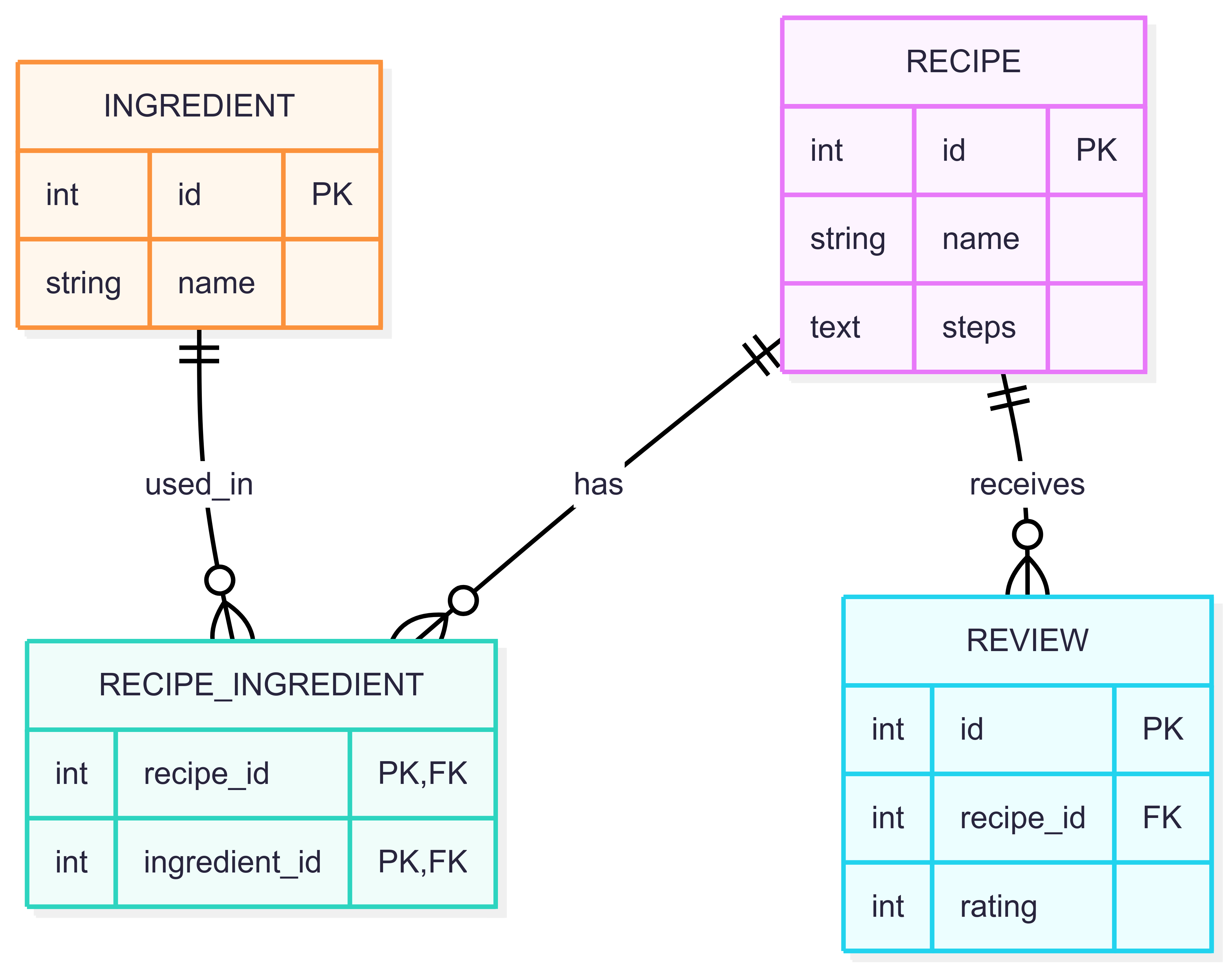
When we export the data, we will need to "flatten" this relationship so that all the ingredients for a single Recipe appear in one cell of our spreadsheet.
Setting Up the Export Script
To create a standalone script that interacts with your project's database, you need to initialize the environment correctly. This ensures the script knows where to find your settings and models.
You should place this script in a scripts directory at the root of your project. Here is how you set up the environment at the beginning of your file:
sys.path.insert: This tells the script where to look for your project modules.os.environ.setdefault: This points the script to your project's configuration settings, specificallyDJANGO_SETTINGS_MODULEandcooking_helper.settings.django.setup(): This command initializes the database connections and loads your models so you can use them in the script.
Querying and Formatting Recipe Data
Now that the script is set up, we need to fetch the recipes. When dealing with many-to-many relationships, it is efficient to use prefetch_related. This tool fetches the related ingredients at the same time as the recipes, preventing the script from making hundreds of tiny database queries.
Once we have the data, we need to format it for the CSV format. We want each Recipe to be a single row. This means we must:
- Format Ingredients: Turn the list of
Ingredientobjects into a single string of names, separated by commas. - Clean Steps: Remove any line breaks (
\n) from therecipe.stepsso they do not break theCSVrow structure.
Here is how we process the data:
Writing Recipes to a CSV File
The final step is to use the built-in csv module to create the file. We use a writer object to handle the formatting details, like adding quotes around text that contains commas.
Here is the complete structure of the export_to_csv function:
open(filename, "w", ...): Opens the file inwritemode.writer.writerow([...]): Takes a list of values — likeID,Name,Ingredients, andSteps— and writes them as a single line in theCSV.- The
withstatement ensures the file is saved and closed properly even if an error occurs.
When you run this script, you will see a success message:
Your resulting CSV file will look like this when opened in a spreadsheet:
| ID | Name | Ingredients | Steps |
|---|---|---|---|
| 1 | Veggie Soup | carrot, onion, water | 1. Chop veggies. 2. Boil. 3. Serve. |
| 2 | Fruit Salad | apple, banana | 1. Slice fruit. 2. Mix. 3. Enjoy. |
Summary and Practice Preview
In this lesson, you learned how to create a standalone script that exports data from your database. You learned how to initialize the project environment manually, use prefetch_related for efficient data retrieval, and format complex relationships into a simple CSV structure. This is a powerful way to make your application's data portable and accessible to other tools.
You are now ready to implement this export feature in your own project!
