Welcome back! In the last lesson, you built a reusable layout for your Cooking Helper frontend using Angular and TypeScript. Now, it’s time to make your site look more appealing and organized. This is where TypeScript and Angular components come in.
TypeScript is a powerful language that helps you write safer and more maintainable code. Angular uses TypeScript to let you build structured, reusable components for your application. With Angular components, you can organize your layout, manage navigation, and control how your application looks and behaves. In this lesson, you will learn how to use Angular to structure and style your Cooking Helper frontend, making it more user-friendly and visually attractive.
Before we dive deeper, let’s quickly remind ourselves of what we have so far. In the previous lesson, you created the main app component in Angular. This component includes a navigation bar at the top, a main content area, and a footer at the bottom. You also set up your project so that you can include styles for your components.
Here’s what your layout component might look like in Angular:
This component organizes your page into clear sections and makes it easy to reuse the layout across different pages.
To style your web page in Angular, you can include styles in two main ways:
- Global styles: These are defined in a file like
src/styles.cssand apply to your entire application. - Component styles: Each Angular component can have its own styles, defined in a separate file (e.g.,
layout.component.css) or directly in the component’s decorator.
Angular automatically loads these styles for you, so you don’t need to worry about linking files manually. Just make sure your styles are in the right place, and Angular will handle the rest.
Let’s start adding some style to your Cooking Helper frontend. We’ll do this step by step, focusing on the main parts of your layout: the body, container, navbar, and footer.
You can define these styles in your global src/styles.css file or in the component’s own style file. Here’s how you might organize your styles in Angular:
Browsers have their own default styles, which can make your site look different on each browser. To make things consistent, it’s common to reset some basic styles at the top of your global styles file. In Angular, you can do this by adding the following to src/styles.css:
This ensures that all elements start with the same basic appearance, making your layout more predictable.
To set the font, background color, and text color for your entire application, you can add styles for the body and app-root selectors in your global styles file:
This gives your application a clean, modern look and ensures the layout fills the screen.
To keep your content centered and readable, you can use a .container class in your layout component’s template and define its styles globally:
This keeps your content at a comfortable width and adds spacing around it.
To make the navigation bar stand out, you can add a .navbar class and style it in your global styles:
This gives your navbar a dark background and makes the site name prominent.
To match the footer with the navbar and keep it at the bottom, you can add a .footer class:
This ensures your footer always appears at the bottom and matches the overall design.
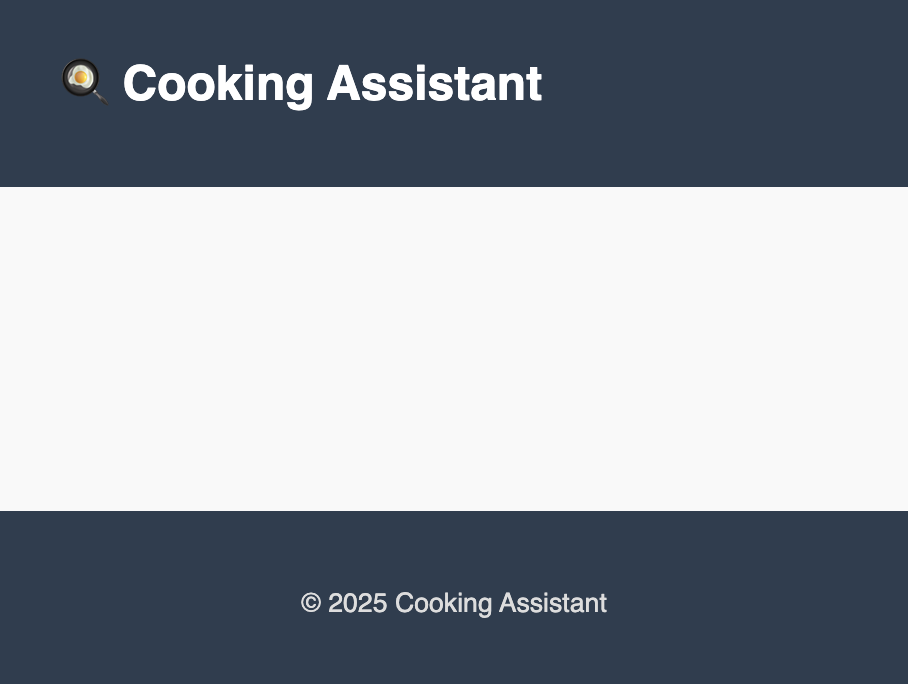
After adding these styles, your Cooking Helper frontend will have a clean, modern look. The navigation bar and footer will have a matching dark color, the content will be centered, and the background will be light and easy on the eyes.
Here’s how your layout component and global styles work together:

In this lesson, you learned how to connect global and component styles to your Angular layout using TypeScript. You saw how to reset default browser styles, set up a clean layout, and style the navbar and footer for a professional look using Angular’s approach.
Next, you’ll get a chance to practice these skills by working with Angular components yourself. This hands-on practice will help you get comfortable making your web pages look great and well-structured. Good luck, and have fun building with Angular!