Introduction to Gemini Images
Introduction to Gemini Image Generation
Welcome to the first lesson of our course, "Creating Images with Gemini and PHP." In this course, you will explore the fascinating world of AI-driven image generation using Google's Gemini API and its gemini-3.1-flash-image model.
Our journey begins with understanding how to set up the environment and generate a simple image. This foundational lesson will set the stage for more advanced topics in subsequent units.
Setting Up the Environment
Before we dive into generating images, it's crucial to set up our environment correctly. First, ensure you have access to the Gemini API by retrieving your API key. This key is essential for authenticating your requests to the API. You can set this key in your .env file as GEMINI_API_KEY.
For this lesson, you'll need to use Composer, PHP's package manager, to install the necessary libraries. You can install the guzzlehttp/guzzle library for making HTTP requests.
Note that the environment will be fully set up for the practice section, so you can focus on the exercises without worrying about the setup.
Configuring the Gemini API Client
With the environment set up, the next step is to configure the Gemini API client. This involves initializing the client with your API key. The API key is retrieved from the environment variable GEMINI_API_KEY. If the key is not found, the script will raise an error, prompting you to set it before proceeding.
Here's how you can initialize the client using Guzzle:
This setup ensures that your application can securely communicate with the Gemini API.
Generating a Simple Image
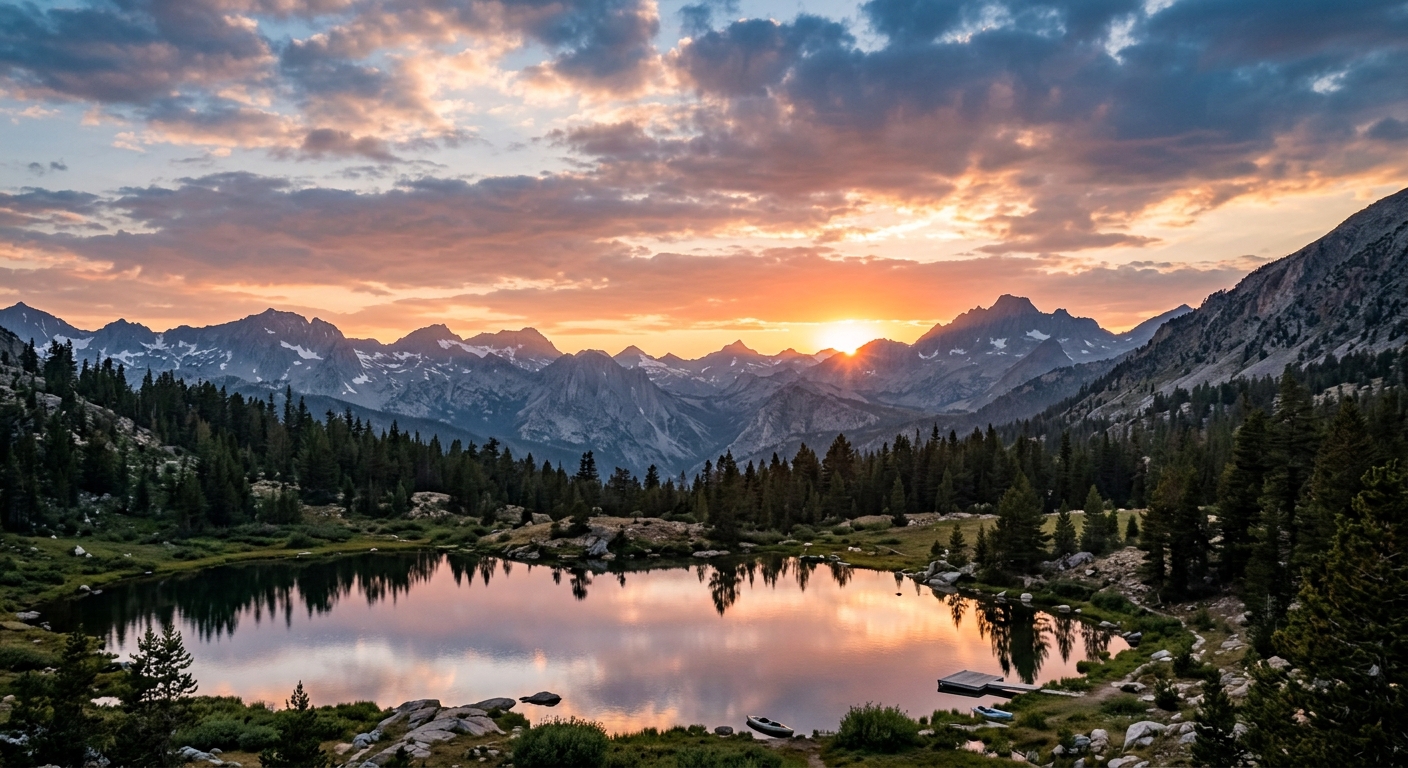
Now, let's generate a simple image using the gemini-3.1-flash-image model. We'll start by defining a prompt, which is a textual description of the image you want to create. In this example, the prompt is "A serene sunset over a mountain range."
The POST request is sent to the generateContent endpoint. The payload is structured around contents and parts, with a generationConfig that enables image output:
The contents array holds your conversation turns, each containing one or more parts. A part with a text key carries your prompt. The generationConfig field controls how the model responds — setting responseModalities to include "IMAGE" tells the model to produce image output alongside any text.
Processing and Displaying the Generated Image
Once the image is generated, the next step is to process and display it. Here's how you can handle the image data and save it to a file:
This code snippet checks if the public/images/ directory exists and creates it if it doesn't. It then navigates the Gemini response structure — candidates -> content -> parts — looking for any inlineData parts that contain image bytes.
The base64-encoded image data is decoded and saved as a PNG file. The filename is generated using a timestamp to ensure uniqueness.
The saved images can be displayed on your web application using HTML. You can use the <img> tag to show the generated images, making them accessible to users.
Result
When you execute the script, the terminal will display the path to your newly created image. Since we used the prompt "A serene sunset over a mountain range," the Gemini API returns base64 data which our PHP script converts into a .png file.
Generated Image:
Summary and Next Steps
In this lesson, you learned how to set up your environment, configure the Gemini API client, and generate a simple image using the gemini-3.1-flash-image model and the generateContent API. We also explored how to process and save the generated image using PHP.
This foundational knowledge will be crucial as you progress through the course. As you move on to the practice exercises, I encourage you to experiment with different prompts and configurations to see the diverse range of images you can create.
This hands-on practice will solidify your understanding and prepare you for more advanced topics in the upcoming lessons.
