Personal Commands with PATH
Introduction: Your Own Commands, Reachable by Name
Welcome to the sixth and final unit of Homebrew and Your zsh Environment. Along the way, we installed and audited Homebrew tools, learned how zsh resolves a command name, and made our aliases permanent. One capability is still missing: our own programs are not yet first-class commands. An executable sitting in a project folder only runs if we type a path to it, which is fine once and tiresome forever.
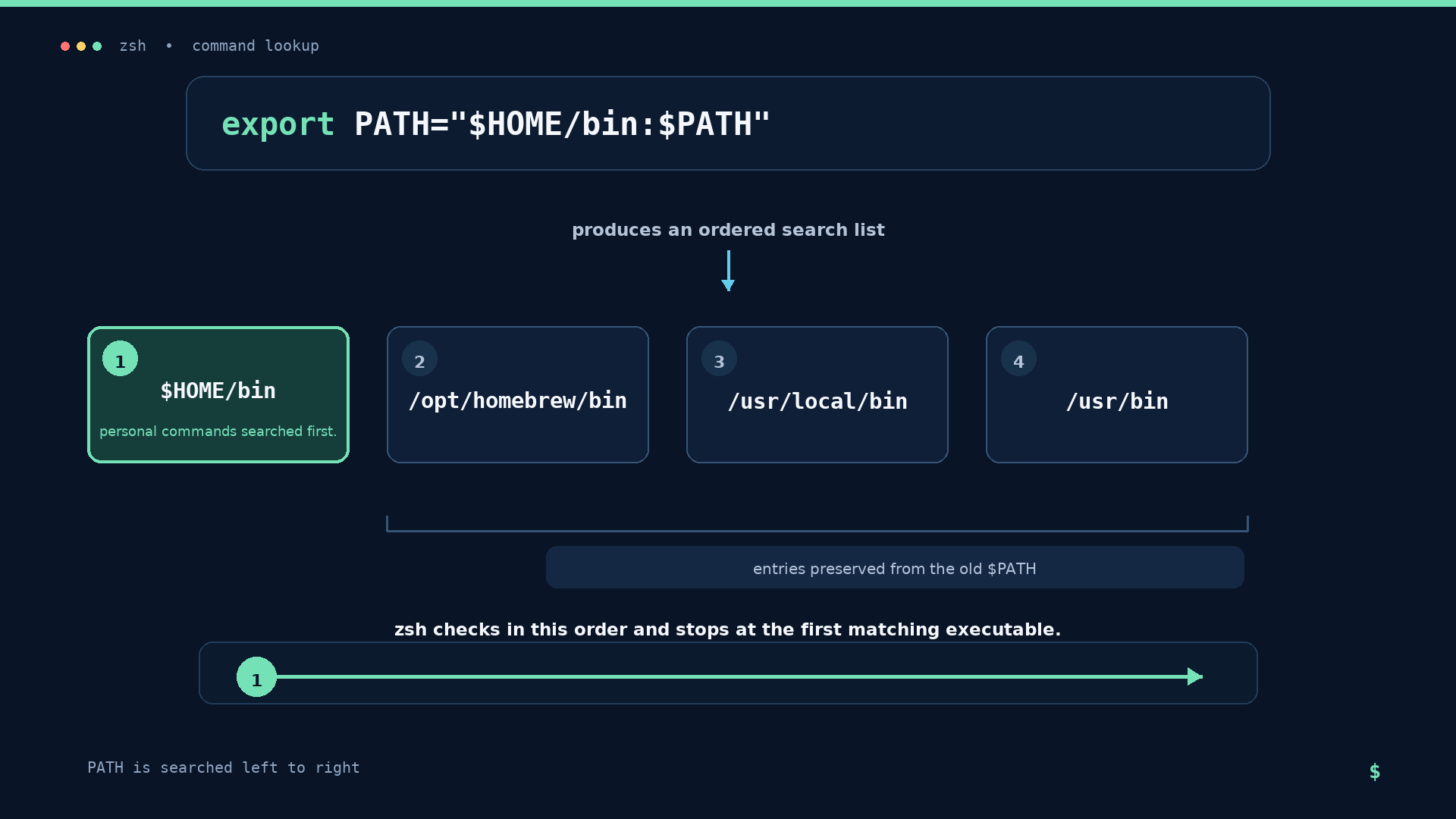
Two ideas from earlier units combine to fix this. From Unit 3, zsh finds a command by walking the ordered directories listed in $PATH. From Unit 5, ~/.zshrc.local is a file we own outright, loaded by one source line in the shared ~/.zshrc. Put them together, and personal commands become as easy to call as ls.
Four moves take us there:
- Create a personal command directory,
~/bin, and put an executable in it. - Prepend that directory to
$PATHidempotently, without losing the old value. - Persist the lines next to the aliases in
~/.zshrc.local, and confirm the shared file still needs no edit. - Prove it works: position in the path, exactly one copy of the entry, resolution by name, and a real run from elsewhere.
Version strings, platform build identifiers, file sizes, and other Homebrew output shown below are illustrative snapshots from one machine. Formulae and system details change, so focus on the output's semantic properties and use command -v or brew --prefix to derive live paths instead of assuming a particular platform path.
Creating ~/bin
We start by creating the directory that will hold commands belonging to one user.
The name bin is short for "binaries", and ~/bin is the long-standing convention for commands that belong to one user rather than to the whole machine.
Notice what we are not doing: no backup of ~/.zshrc, because this unit never edits it. Every change we make lands in ~/bin and in ~/.zshrc.local, a file we own outright — which is exactly the payoff of the separation we set up in Unit 5.
wget gives us a real, already-installed executable to borrow for the experiment.
Copying an Executable Under Our Own Name
Now we place a genuine command inside ~/bin under a name we choose.
command -v wget prints the full path that zsh currently resolves for wget, and the $( ) substitution hands that path straight to cp. Resolving it dynamically matters: Homebrew lives under different prefixes on different machines, so a hardcoded path would fail on many machines. $(brew --prefix)/bin/wget is an equally good way to ask instead of assume.
cp preserves the execute permission of the source file, so fetcher is not a text file pretending to be a command: it is a runnable program. In the long listing, look at the permission column and count the x characters, one for the owner, group, and others; that is what tells the kernel that this file may be executed.
Scaffolding warning. Copying a Homebrew-managed binary is a teaching shortcut, used here only because it hands us a working executable in one line. It is not a pattern to reuse: the copy is frozen and will never receive Homebrew upgrades, and a dynamically linked program that finds its libraries under the Homebrew prefix can break outright the next time that prefix changes. In real life, point at the managed tool instead of duplicating it, with a symbolic link such as ln -s "$(command -v wget)" ~/bin/fetcher, or fill ~/bin with scripts you wrote yourself, which is exactly where the next course goes.
The file exists and is executable, yet typing fetcher at the prompt would still fail with "command not found" because zsh never looks in a directory that is not on $PATH.