Adding Collision Detection
Introduction
Welcome back to Creating the Core Game Mechanics with Pygame! At the end of the previous lesson our program already did quite a lot: spawn_obstacles() creates five obstacle Rects at random positions, a for loop moves and recycles them every frame, and the arrow keys steer the green player around the window.
There is one problem, and it is the difference between a screensaver and a game: the player can drive straight through an obstacle and nothing happens. Falling squares that cannot hurt you are simply decoration.
In this lesson we add the missing rule. We will learn what a "collision" means for two rectangles, meet the pygame.Rect.colliderect() method that reports overlaps for us, check every obstacle once per frame, and finally end the run when the player is hit. By the end, our dodge game will actually be losable — which is exactly what makes dodging worth doing.
What "Collision" Means for Two Rects
Every pygame.Rect occupies a rectangular region of the screen described by four edges: left, right, top, and bottom. Two Rects collide when those two regions share at least one pixel of space — in other words, when they overlap both horizontally and vertically.
That "and" matters. Two rectangles can sit in the same horizontal lane while one is far above the other, and they still do not touch. Only when their horizontal ranges overlap and their vertical ranges overlap do we call it a collision.
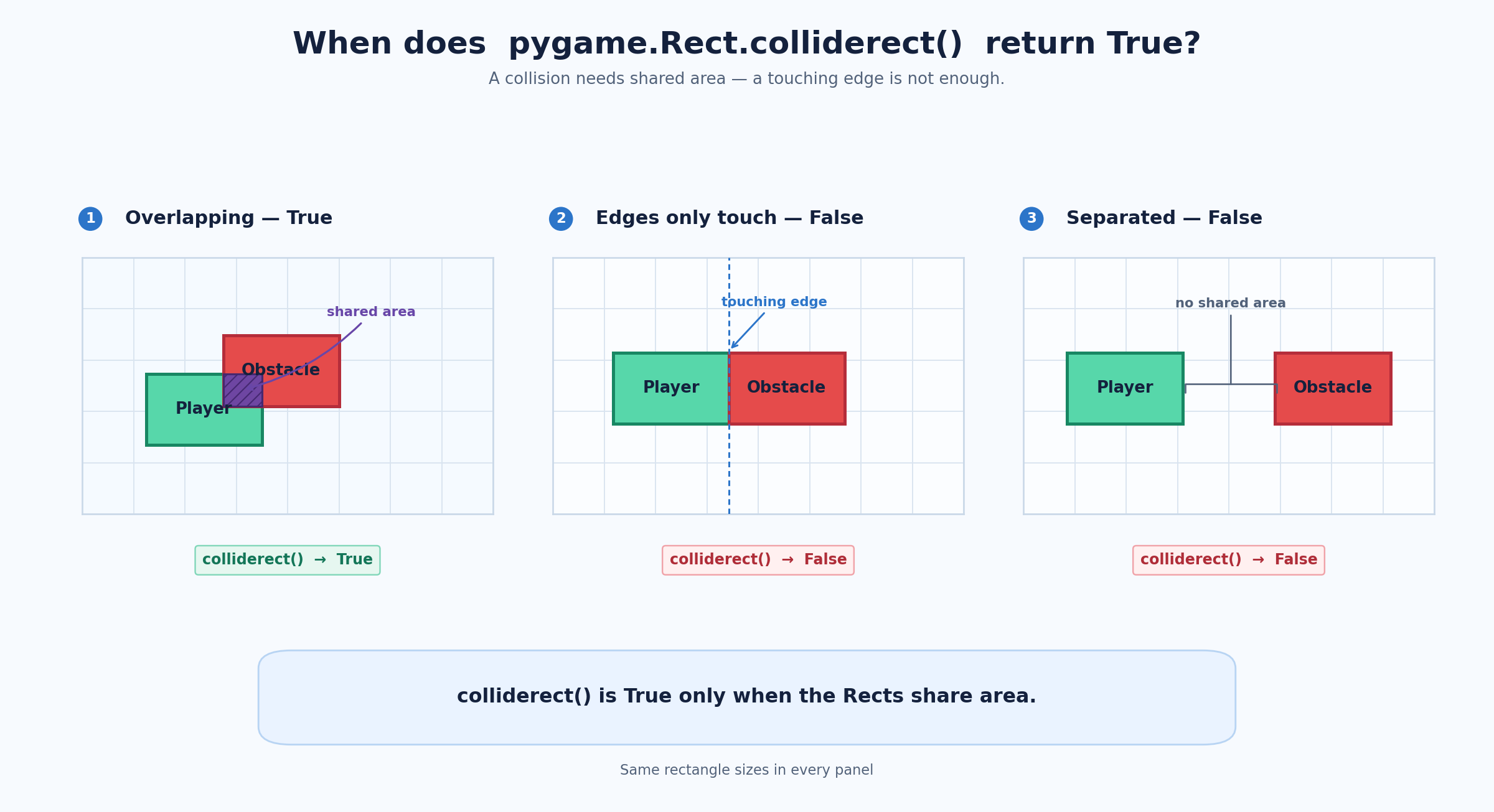
Writing those edge comparisons by hand is possible, but it is fiddly and easy to get wrong. Pygame performs all four comparisons for us through a single method: colliderect().
Meet pygame.Rect.colliderect()
You call colliderect() on one Rect and pass another Rect as its argument. It returns a boolean: True when the two rectangles overlap and False when they do not.
The output is:
box_b starts only 20 pixels to the right and below box_a, so the two squares clearly share space and the answer is True. box_c sits hundreds of pixels away, so the answer is False.
Two details are worth remembering. First, the method is symmetric: player.colliderect(obstacle) and obstacle.colliderect(player) always produce the same result, so pick whichever reads more naturally. Second, because it returns a boolean, the call can be used directly as the condition of an if statement — no comparison with True is needed.
Checking Every Obstacle
A single colliderect() call answers a question about exactly one pair of rectangles. Our game has five obstacles, and any one of them could be the one that hits the player, so we need to ask the question five times per frame. That is precisely what a for loop over the list is for:
The loop takes each Rect out of obstacles in turn and compares it with player. If none of them overlaps, nothing happens and the frame continues as usual.
Starting with a print() is a deliberate first step. It lets us confirm that the detection logic is firing at the right moments while the game keeps running, instead of immediately closing the window and leaving us guessing.
Placing the Check in the Game Loop
Where the collision loop goes inside the frame matters just as much as what it contains. It belongs after the player has moved and after the obstacles have moved, but before anything is drawn:
Checking after movement means we are testing the exact positions that are about to be drawn, so what the player sees on screen and what the collision code decides always agree. If we checked before movement, the game would be reacting to last frame's picture.
Keeping the collision loop separate from the movement loop is also a readability choice. Each loop then has one clear responsibility: one moves and recycles obstacles, the other decides whether the run is over. Merging them would work, but the code becomes harder to read and to change later.
Ending the Game
Our main loop is controlled by a single boolean flag:
Setting running = False does not stop the program instantly. Python simply continues with the rest of the current frame: the screen is cleared, the player and obstacles are drawn, and the display is flipped. Only when execution returns to the top of the while running: statement is the condition re-evaluated, found to be False, and the loop exited. Then pygame.quit() shuts Pygame down cleanly.
That behavior is a small feature rather than a flaw: the player gets to see the frame in which the crash happened before the window closes.
The Complete Program
Common Pitfalls and Tuning Tips
- Keep the collision check inside the
whileloop. Placed above it, the test would run once at startup and never again. - Check after movement, so the result matches the positions that are about to be drawn.
- Do not use
==. Comparing twoRectswith==asks whether they have identical position and size, which is almost never true and is not what "overlap" means. - Pass a
Rect, not a tuple or a number.colliderect()expects another rectangle; usecollidepoint()if you ever need to test a single point instead. - Rectangle dimensions are the hitboxes. The player is
50 × 40and each obstacle is40 × 40, so those numbers decide exactly how forgiving the game feels. Shrinking the player rectangle slightly is a classic way to make an arcade game feel fairer. - Console output in the browser preview. When the game runs in the browser,
print()text is sent to the browser's developer console instead of a terminal panel, so do not worry if you cannot see it in the game window.
Conclusion and Next Steps
A collision is nothing more than two rectangles sharing space, and colliderect() reports that overlap as a simple True or False. By looping over every obstacle once per frame and switching running off when one of them overlaps the player, our dodge game gains the one thing it was missing: a way to lose.
Right now, though, every run ends the same way, whether it lasted two seconds or two minutes. In the next unit we will add a score so that successful dodges are actually rewarded.
